Adding a Seller
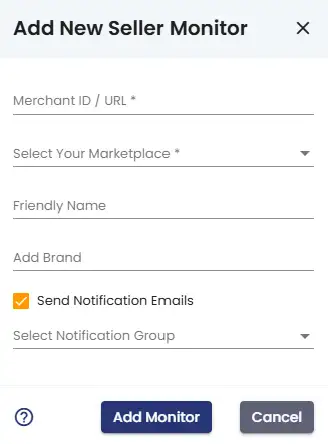
To start tracking a new seller, click the Add Seller button to open the seller setup popup. Fill in the following fields:
- Merchant ID — the unique identifier for the seller on Amazon
- Marketplace — the Amazon marketplace you want to monitor
- Name — an optional label to help you identify this seller. If left blank, the seller's actual store name will be filled in automatically after the first monitoring run
- Brand — optional. If the seller carries multiple brands and you only want to track products from a specific one, enter the brand name here to narrow the scope
- Notification Group — select which notification group should receive alerts for this seller
Once everything looks good, save the seller to add them to your monitoring list.
Editing a Seller
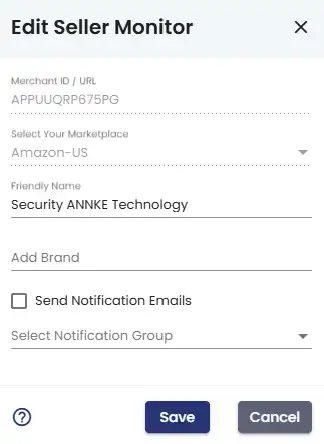
To edit a seller, click the  icon in their action buttons within the
Seller Summary Table. This opens the edit popup, where you can update the seller's
name, brand filter, and notification group.
Note that Merchant ID and Marketplace cannot be edited — changing either
of these would effectively create a new seller, so you'd need to add them as a fresh entry instead.
icon in their action buttons within the
Seller Summary Table. This opens the edit popup, where you can update the seller's
name, brand filter, and notification group.
Note that Merchant ID and Marketplace cannot be edited — changing either
of these would effectively create a new seller, so you'd need to add them as a fresh entry instead.
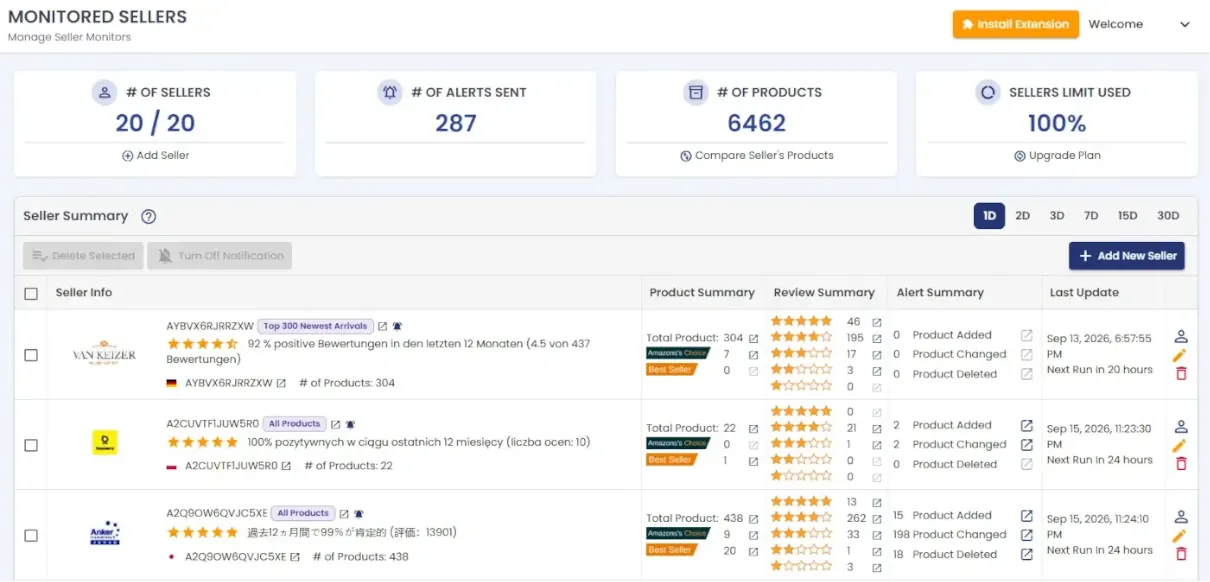
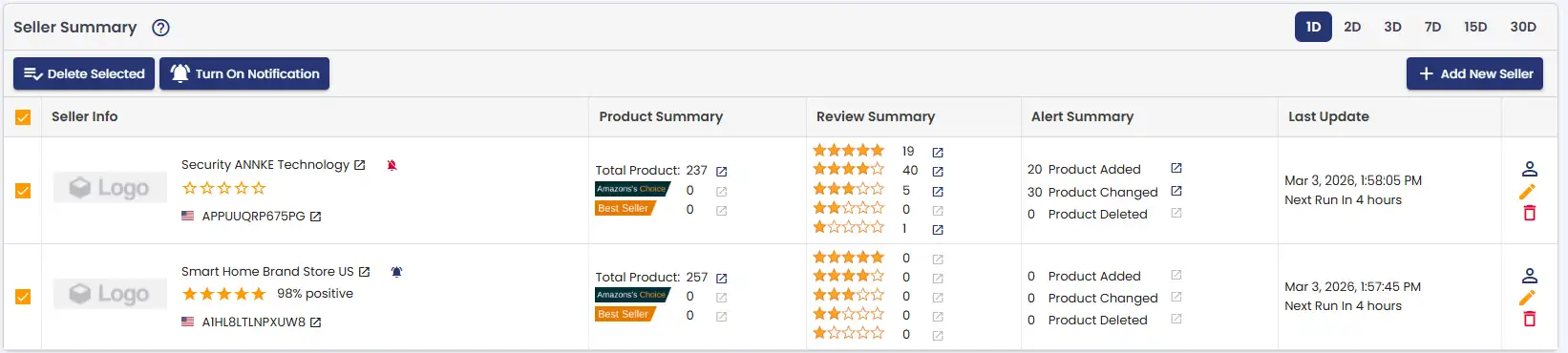
There's also a quicker way to delete or toggle notifications for multiple sellers at once. Simply check the checkboxes on the left side of the seller list to select multiple sellers. Once selected, use the Delete or Notifications On/Off buttons that appear at the top of the list to apply your changes to all selected sellers at once.
Deleting a Seller
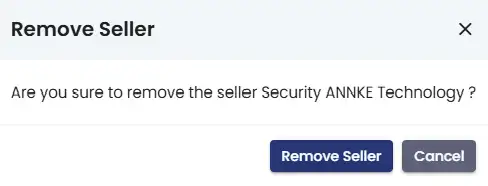
To stop tracking a seller, click the  icon in their action buttons.
This will remove the seller and all associated monitoring data.
icon in their action buttons.
This will remove the seller and all associated monitoring data.