

Manage a Single Product Monitoring
With AmzMonitor, you can add your products one by one, then edit or remove them anytime.
Add Single Product For Monitoring
-
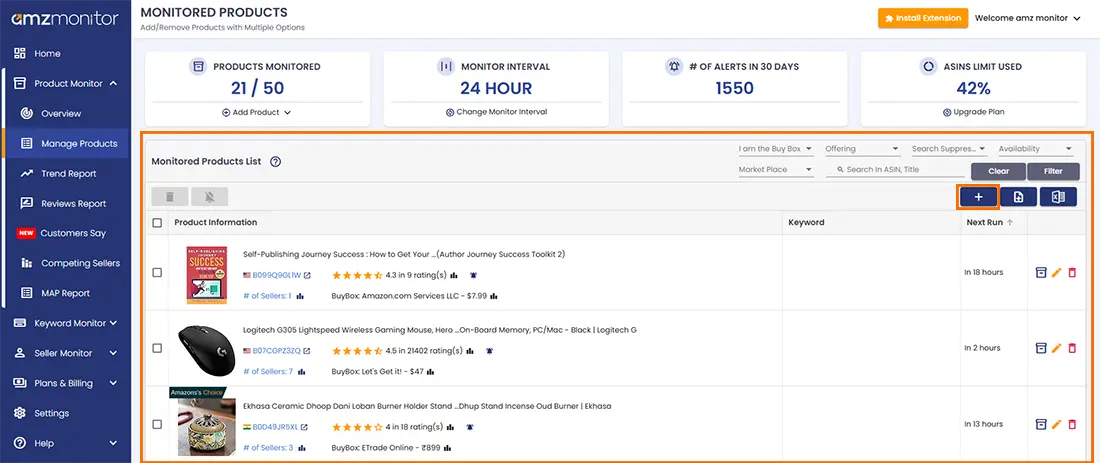
After logging in, head to Product Monitor → Manage Products from the left sidebar.
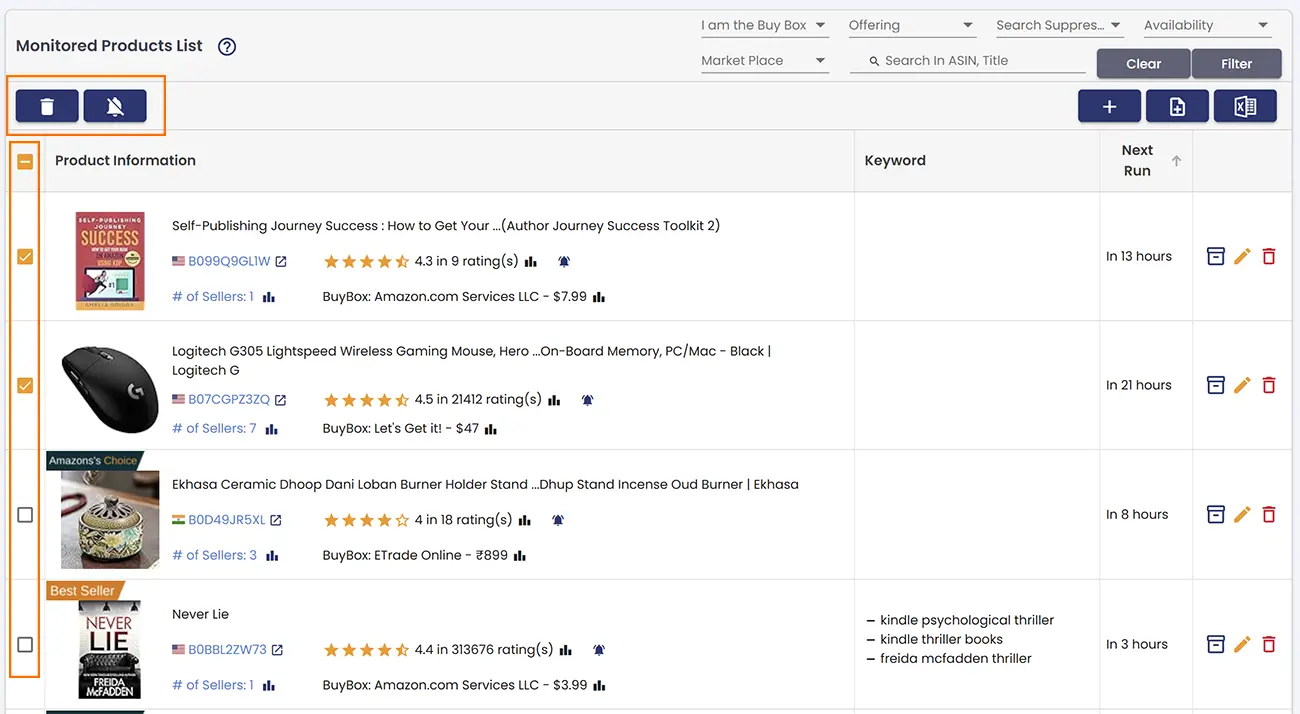
This page gives you a full overview of everything you're tracking — your products' latest status, the keywords linked to each product, how long until the next monitoring cycle runs, and quick actions you can take for each item, all in one table.
To add a new product, click the
 icon above the product list.
-
A popup will appear with a few fields to fill in before AmzMonitor starts monitoring your product.Fields marked with * are required. A short description of each field is provided below.
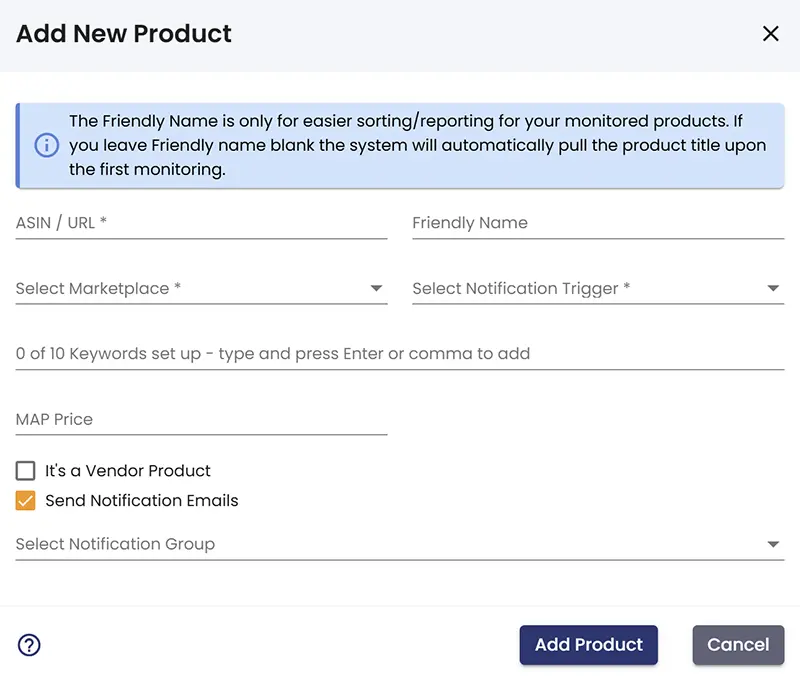
- ASIN or Product URL — Enter the product's ASIN directly, or paste the Amazon product page URL. AmzMonitor will automatically extract the ASIN from the URL.
- Friendly Name — Give your product a custom name to make it easier to identify in your dashboard. If you leave this blank, AmzMonitor will use the product's title after the first monitoring cycle runs.
- Marketplace — Select which Amazon marketplace this product is listed on (e.g., Amazon US, Amazon France). Choose the relevant one from the dropdown.
- Notification Trigger — Choose what types of changes should trigger an email alert for this product. You can select a trigger you've already saved, or use one of the built-in options: All, Standard, Only Pricing, or Only Listing. For more details on how triggers work, see Monitoring Settings.
- Keywords — AmzMonitor tracks your product's keyword rankings on Amazon. Enter up to 10 keywords to monitor how your product ranks for each one. Keep in mind that the keywords you add here count toward your keyword monitoring limit.
- MAP Price — Set a Minimum Advertised Price (MAP) for this product. AmzMonitor tracks the prices of all sellers on this listing and will send you a notification if any seller drops below the MAP price you've defined.
- This is a Vendor Product — Check this box if your product is sold directly by Amazon and you are an Amazon Vendor (1P seller). When enabled, AMzMonitor counts Buy Boxes won by Amazon as your own in the statistics, giving you an accurate performance overview.
- Send Notification Emails — When checked, you will receive email notifications for any alerts triggered by this product. Uncheck this if you want to pause notifications for this product without removing it from your monitoring list.
- Notification Group — Assign this product to a notification group you've previously created. When a group is assigned, alerts from this product will only be sent to that group. Learn more about setting up notification groups at Email Groups.
Edit Product Monitoring
To edit a monitored product, click the  icon in the leftmost column of your product list. This will open the edit popup, which is identical to the add product form — with one exception: the ASIN and Marketplace fields cannot be changed. All other fields can be updated at any time.

Remove Product Monitoring
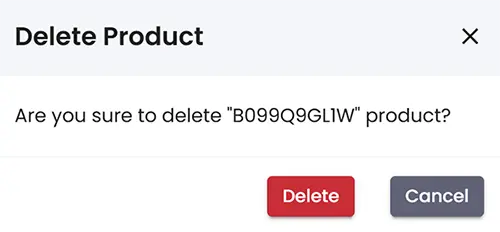
To remove a product from monitoring, click the  icon in the rightmost column of your product list. A confirmation popup will appear — click Delete to permanently remove the product from your monitoring list.
Manage Product Monitoring in Bulk
AmzMonitor also supports bulk product management, so you can add, update, or
remove multiple products at once without going through them one by one. To get
started, go to Product Monitor → Manage Products from the left
sidebar. On the Manage Products page, click the  icon above
the product list to begin the bulk product process.
icon above
the product list to begin the bulk product process.
Add Bulk Products
-
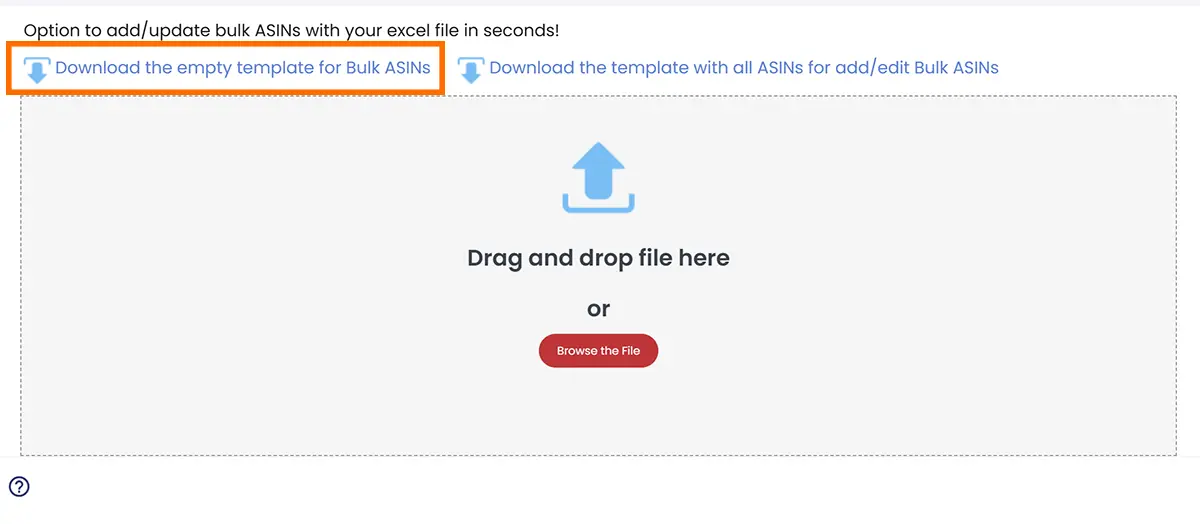
In the popup, click Download the empty template for Bulk Products to get the Excel template. Use this option when you want to add new products to your monitoring list.
-
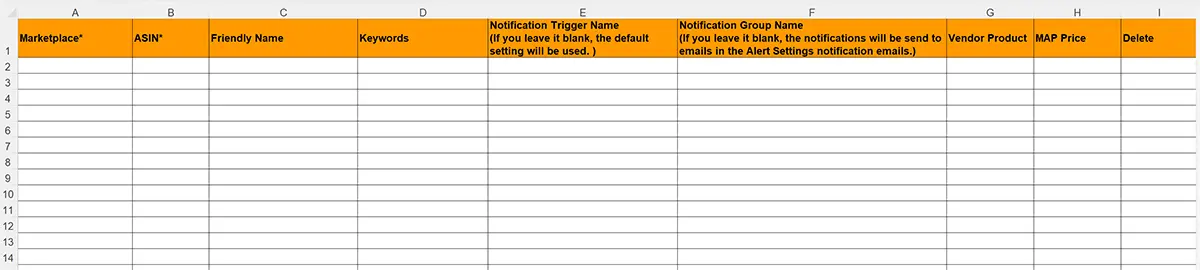
Open the downloaded AsinTemplate.xls file. Each row represents
one product. Fill in all the fields covered in the section above —
ASIN, Marketplace, Notification Trigger,
and any other relevant fields — for each product you want to add.
-
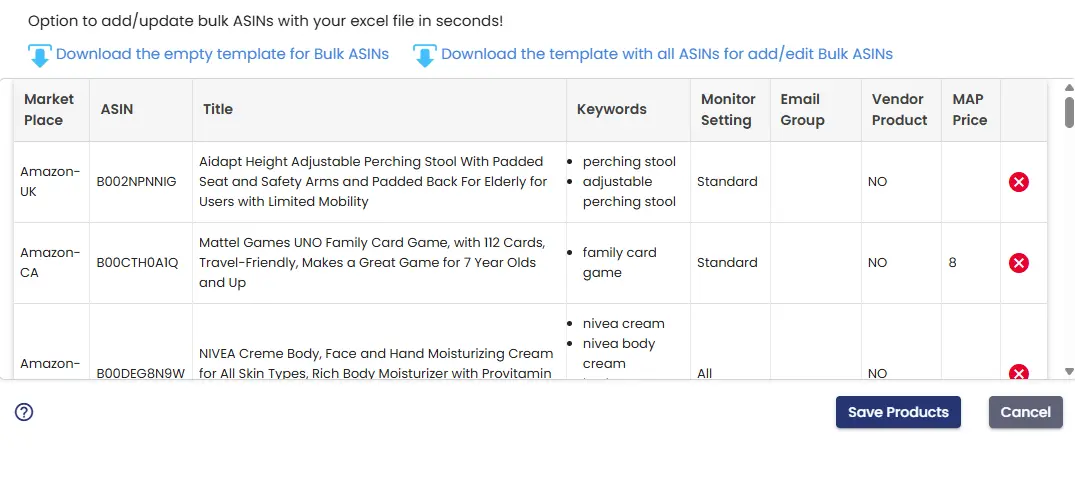
Once your file is ready, drag and drop it into the upload area on the popup — or click Select File to browse and upload it manually. AmzMonitor will analyze the file and display a summary of all the products you're about to import. If you spot any errors or want to exclude a product, click the
 icon on the right to remove it from the list. Once everything looks good, click Save Products to complete the import.
Update Bulk Products
-
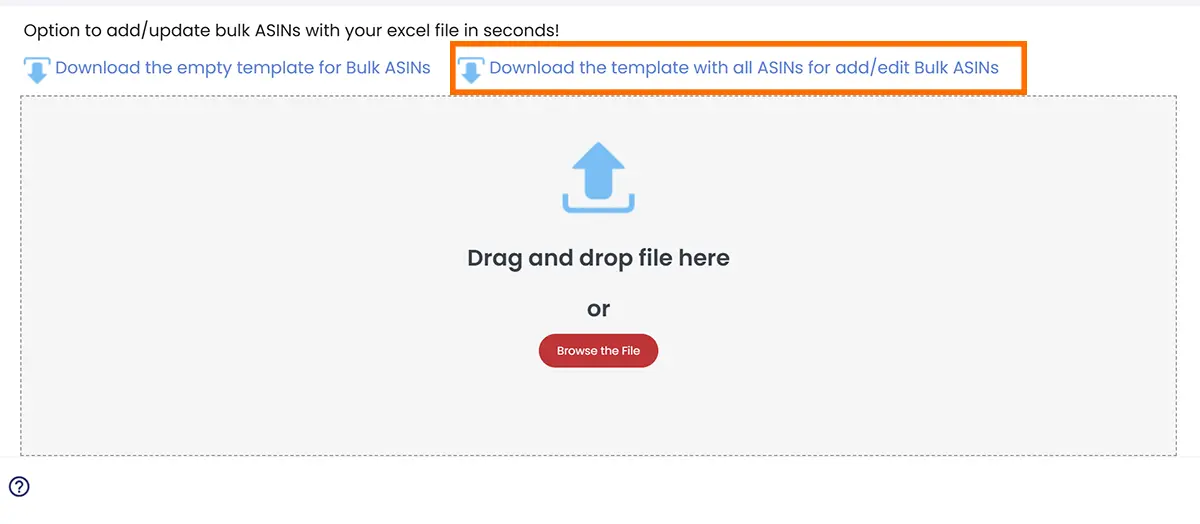
The popup also includes a Download the template with all ASINs for add/edit Bulk ASINs option. Use this to export all your currently monitored products into an editable Excel file, so you can make bulk updates to your existing product list.
-
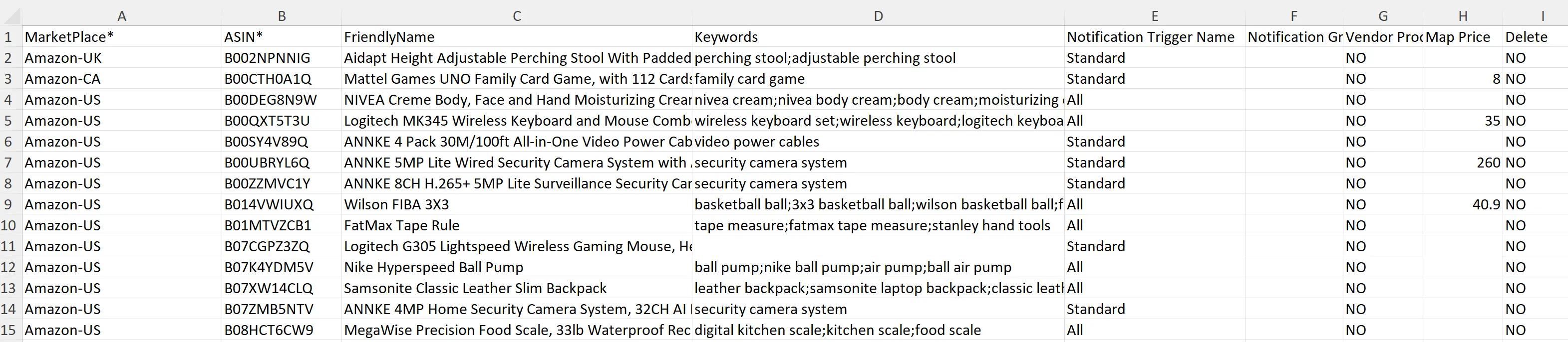
Open the downloaded AllProducts.xls file and make your changes. You can update friendly names, keywords, brand names, and other fields. Note that ASIN and Marketplace fields cannot be changed. The file also includes a Delete column — set it to Yes for any product you want to remove, and AmzMonitor will delete it when you import the file.
-
Once your file is ready, drag and drop it into the upload area on the popup — or click Select File to browse and upload it manually. AmzMonitor will analyze the file and display a summary of all the products you're about to import. If you spot any errors or want to exclude a product, click the icon on the right to remove it from the list. Once everything looks good, click Save Products to complete the import.
-
There's also a quicker way to delete or toggle notifications for multiple products at once. Simply check the checkboxes on the left side of the product list to select multiple products. Once selected, use the Delete or Notifications On/Off buttons that appear at the top of the list to apply your changes to all selected products at once.
Viewing Monitoring Details
AmzMonitor stores the full monitoring history and details of each tracked product on its dedicated product detail page. There are a few different ways to access and view this information — here's a quick overview of what's available.
-
Inline Product Summary — Across AmzMonitor's product and alert lists, each product displays a quick summary of its current status. This includes the product title, image, ASIN, rating, number of active sellers, the latest Buy Box price, and who currently holds the Buy Box. You can also click the icons next to the seller count and Buy Box information to view a historical chart of that data in a popup.

-
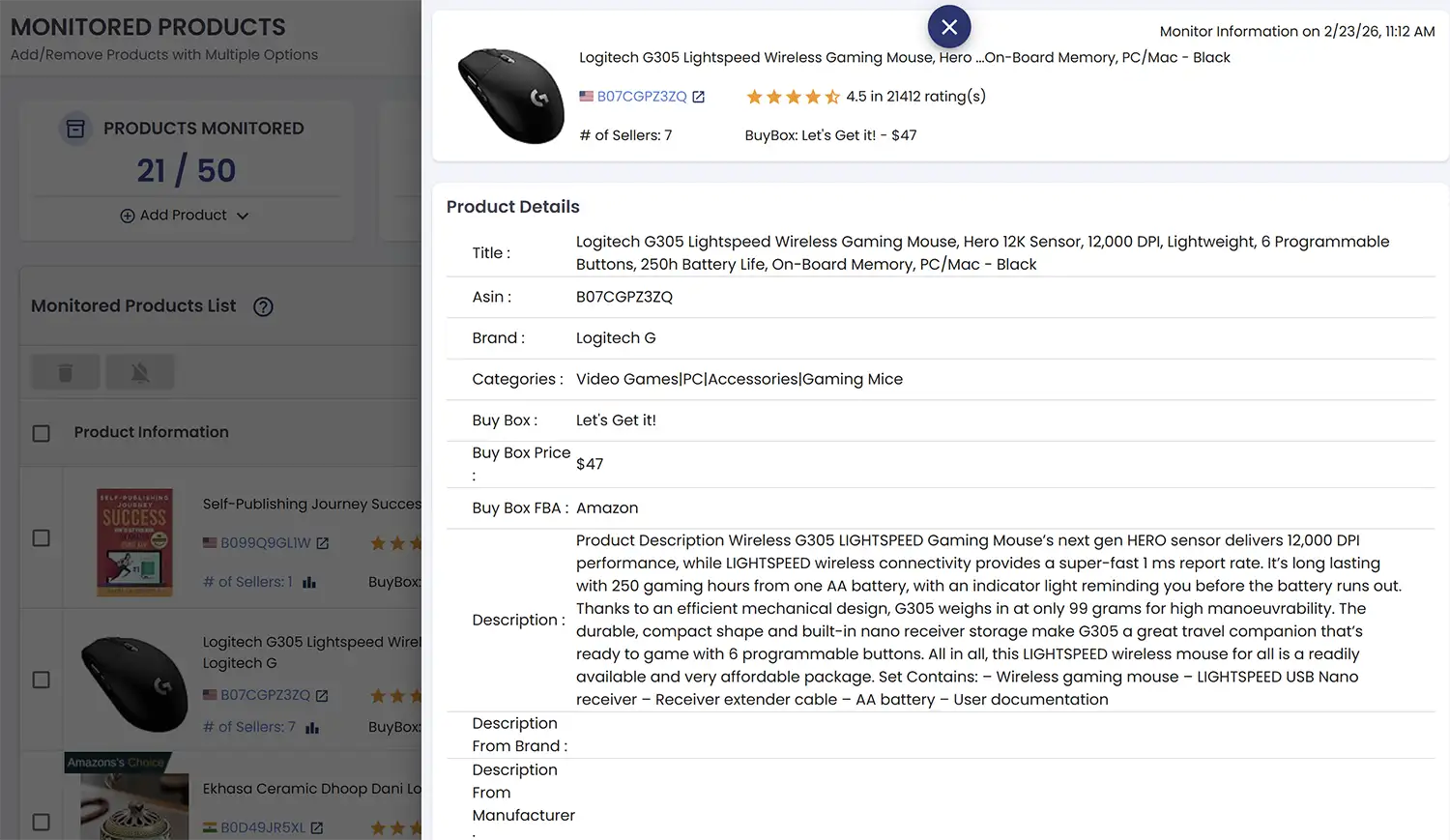
Quick Details Hover — The ASIN shown in any Inline Product Summary is clickable. Click it to open a hover panel on the right side of the screen, where you can see the full details retrieved during the last monitoring cycle — without leaving the page.
-
Product Detail Page — For the full monitoring history and all product data, click the box icon at the end of the product row. This will open the dedicated product detail page for that product. Here you'll find four tabs — Dashboard, Recent Alerts, Monitor History, and Keyword Monitor History — each giving you detailed historical charts and data about your monitored product. A brief visual walkthrough of each tab is provided below.
-
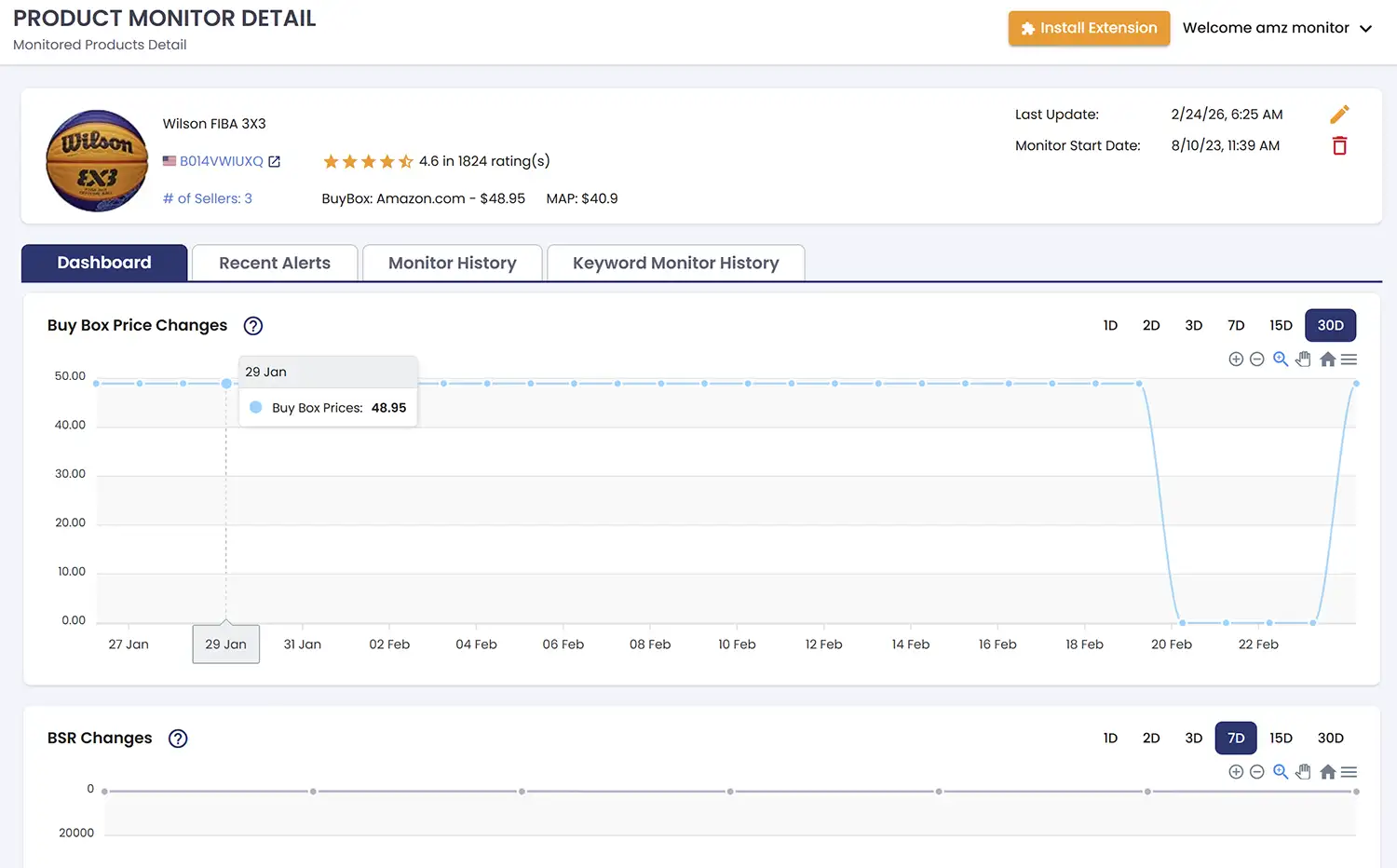
Dashboard — The Dashboard tab gives you a historical view of your product's key metrics over time. You'll find charts tracking Buy Box price changes, BSR (Best Seller Rank) changes, number of sellers, and review count changes. Each chart can be exported as a CSV file for further analysis.
-
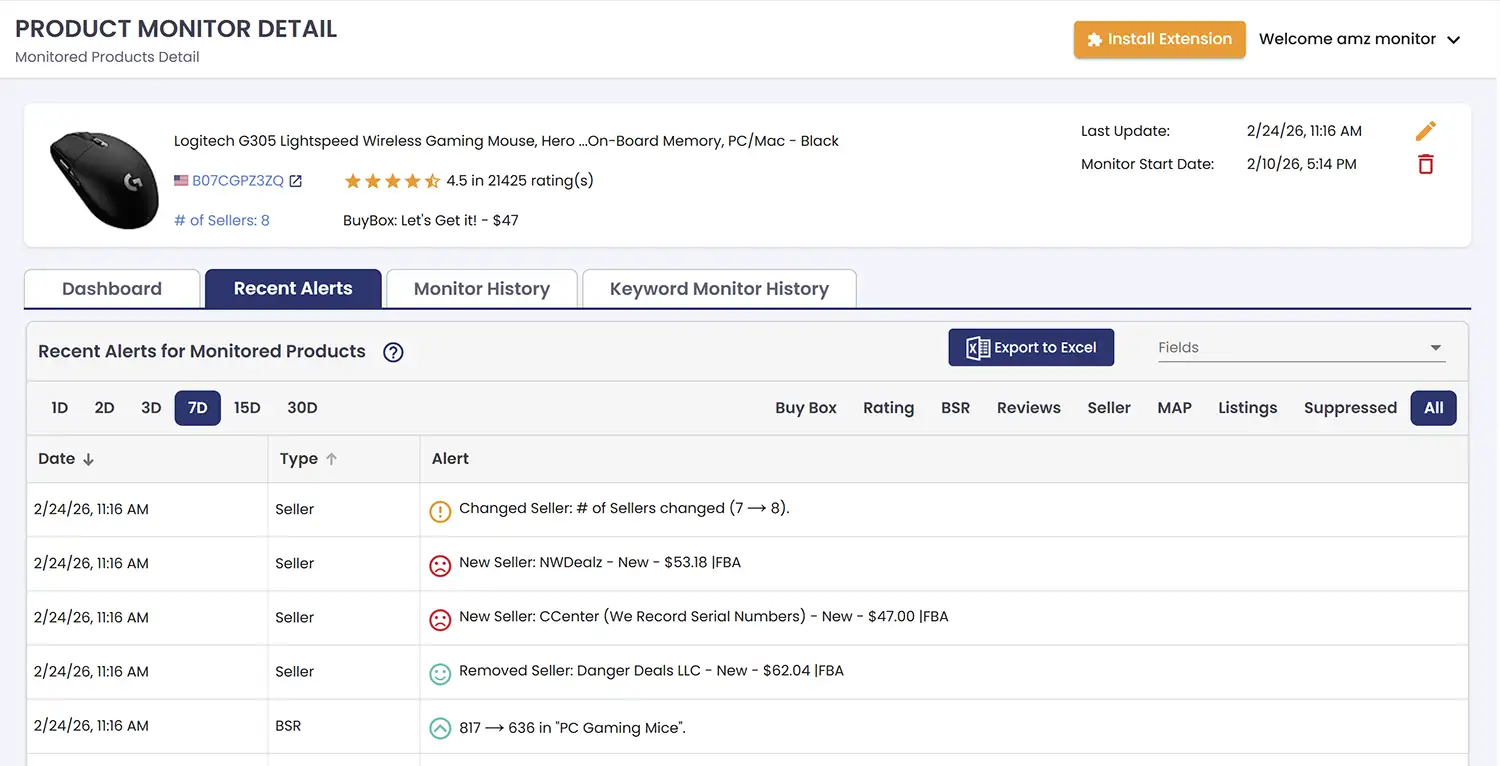
Recent Alerts — View the full alert history generated by this product's monitoring cycles. You can filter alerts by type and export the data as a CSV file.
-
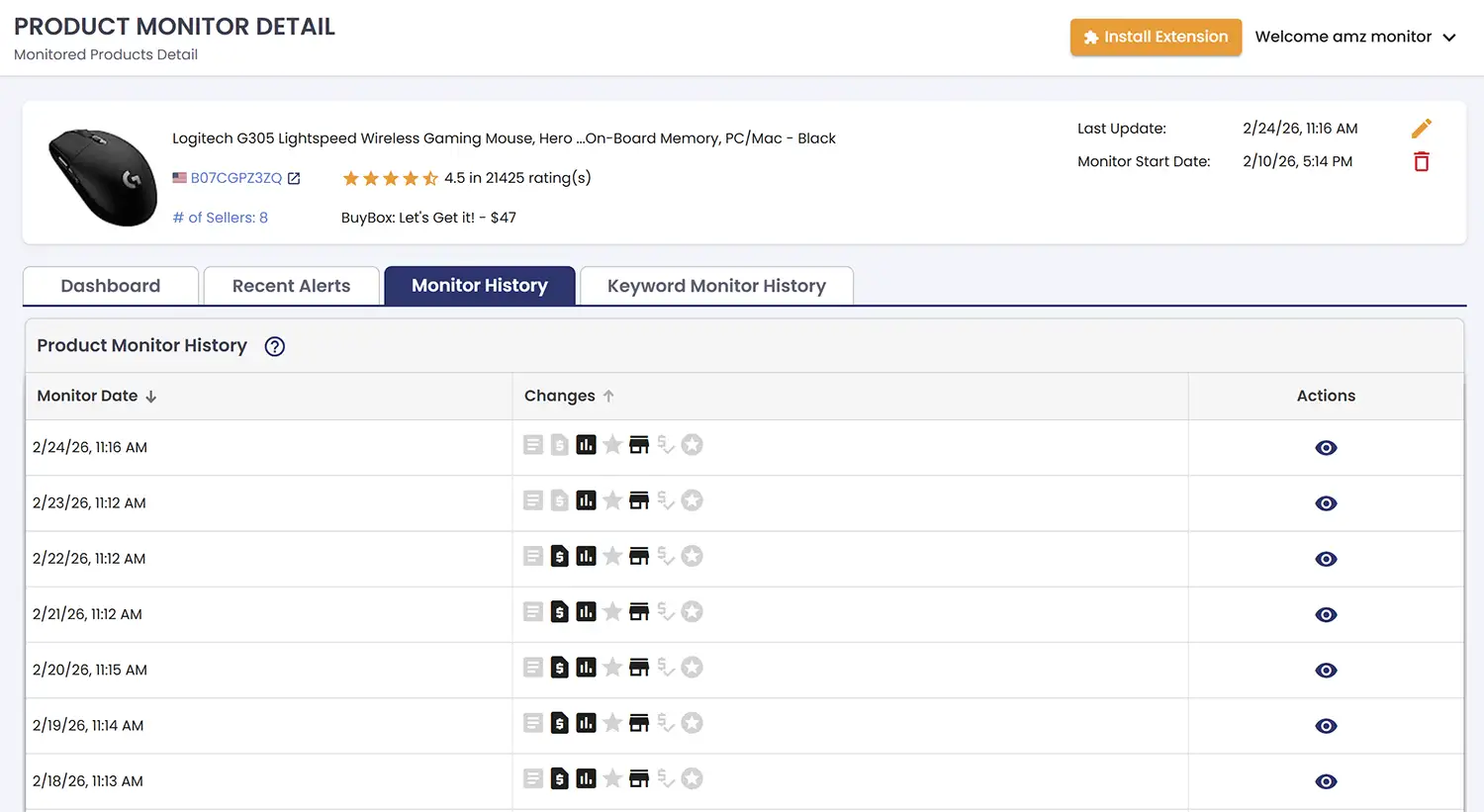
Monitor History — View a full log of every monitoring cycle run for this product, including the time each cycle was completed and a summary of what changed. Changes are displayed as clickable icons next to each cycle — click any icon to see a detailed breakdown of that specific change in a popup.
-
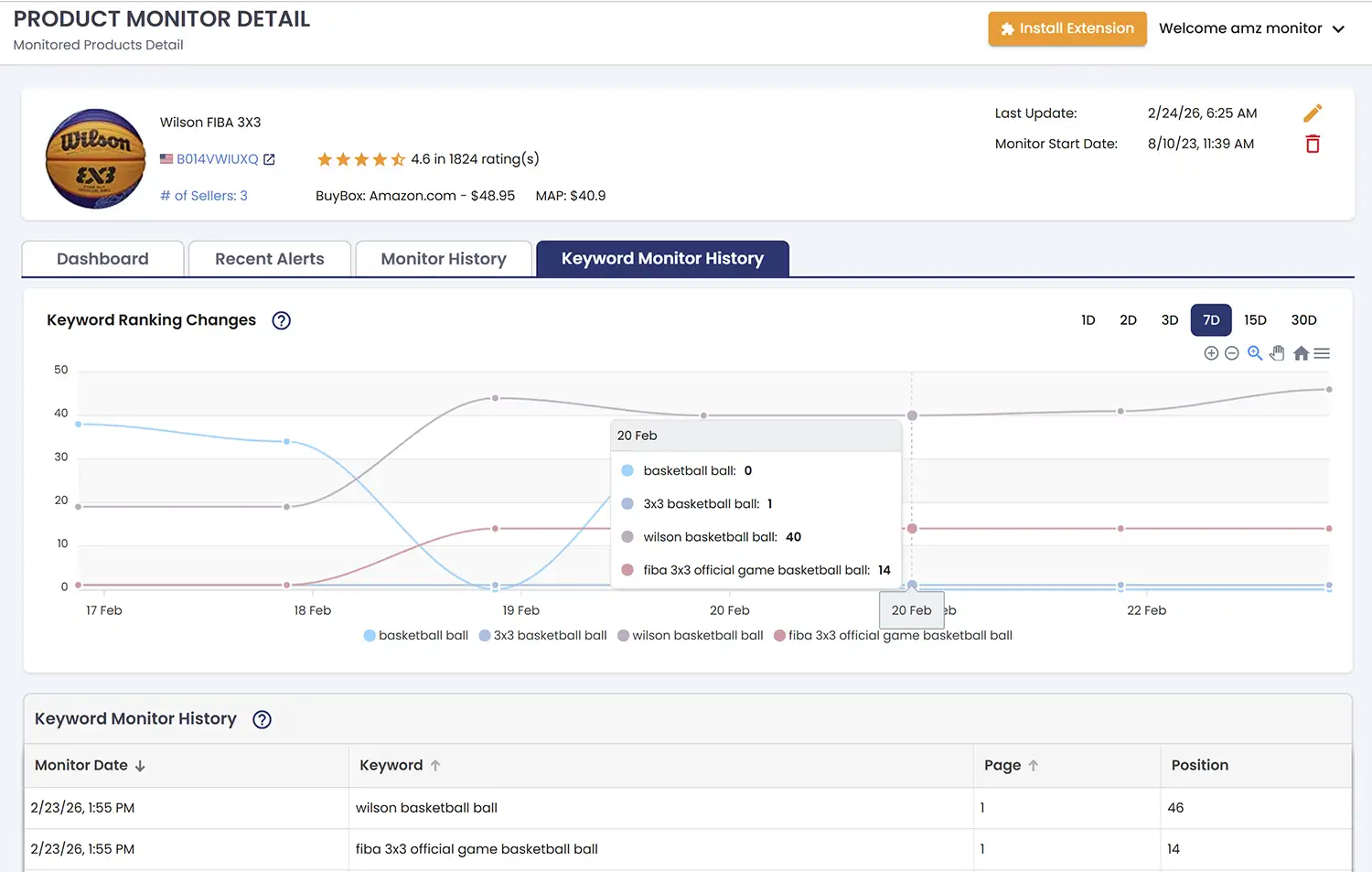
Keyword Monitor History — View the ranking history for each keyword being tracked for this product. Charts show how your product's ranking has changed over time for each keyword, alongside a detailed table of the exact ranking recorded at every monitoring cycle.
-
Dashboard — The Dashboard tab gives you a historical view of your product's key metrics over time. You'll find charts tracking Buy Box price changes, BSR (Best Seller Rank) changes, number of sellers, and review count changes. Each chart can be exported as a CSV file for further analysis.