Amazon Choice Badge Top
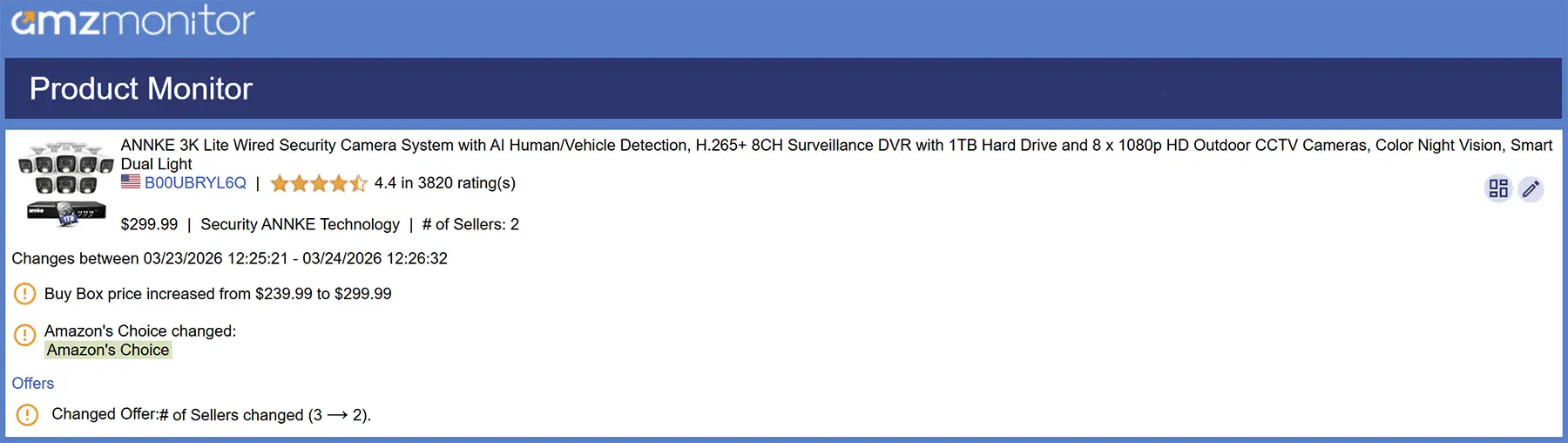
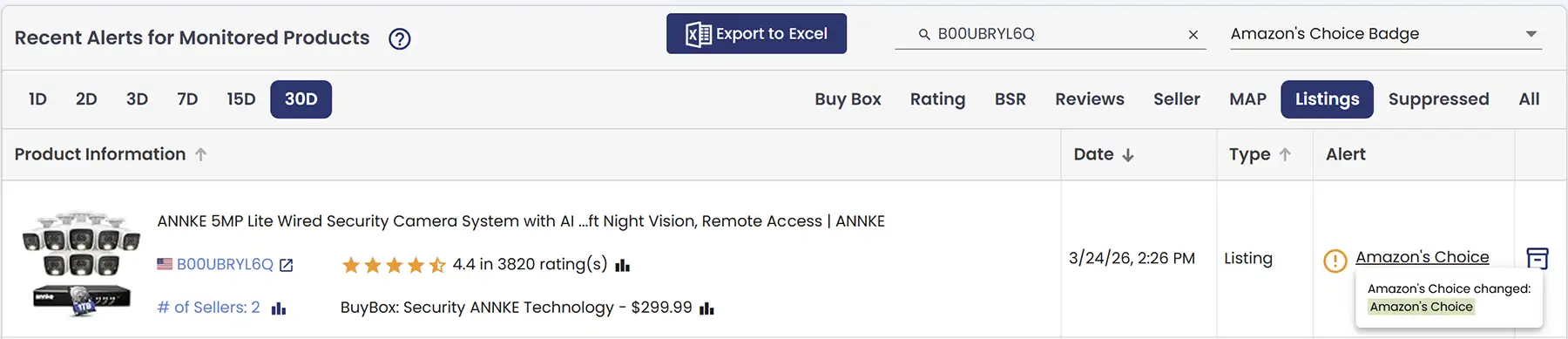
The Amazon’s Choice Badge is awarded to products that are highly rated, well-priced, and available to ship immediately. It helps customers quickly identify recommended products and can significantly increase visibility and sales conversion. AmzMonitor tracks the Amazon’s Choice Badge status for your products and notifies you if your product earns or loses the badge. This allows you to monitor when your product is highlighted as a recommended choice, giving you insights into performance and helping you capitalize on increased customer trust and attention.
The Alert column in the Alerts table provides a brief summary with a link that opens a popup showing the full description change, and you can filter the table by field type using the top-left filter to easily view only the alerts that are relevant to you.
Availability Top
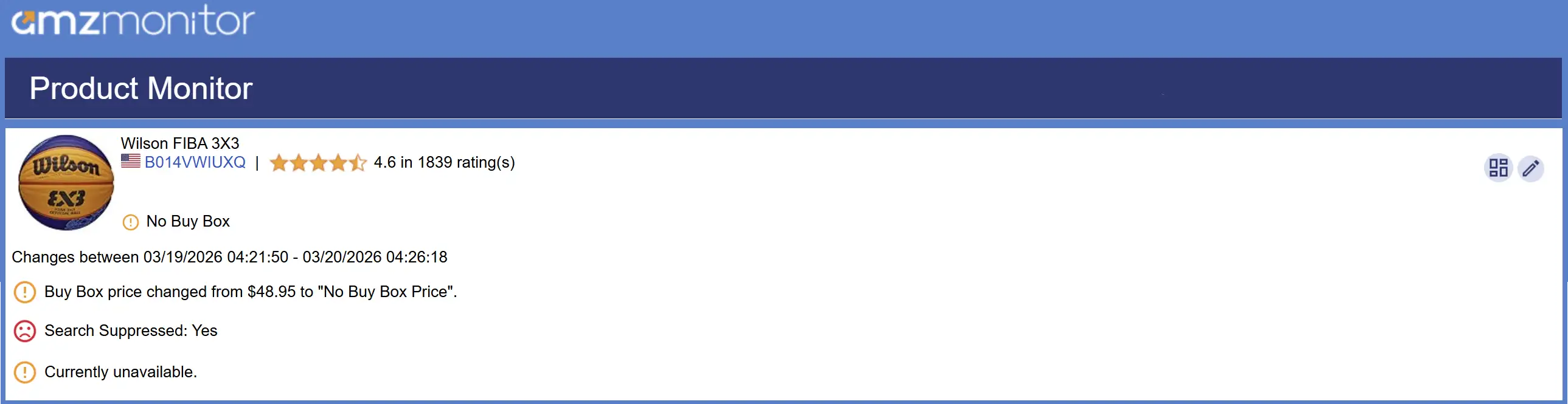
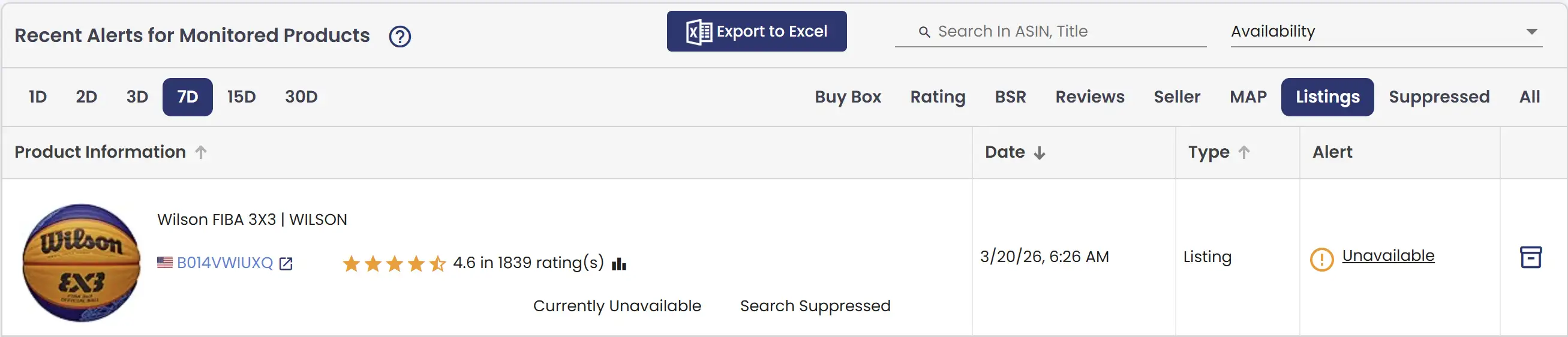
On Amazon, a product may sometimes appear as Unavailable on its detail page. This can happen for several reasons, including inventory being out of stock, the listing being temporarily disabled by Amazon, or account-related issues such as policy violations or fulfillment problems. AmzMonitor tracks these changes and notifies you whenever your product becomes unavailable, so you can react quickly.
Similarly, a product can be Search Suppressed, meaning it does not appear in Amazon search results even though the detail page is still active. This can occur for reasons such as pricing issues, incomplete or inaccurate listing information, policy violations, or low-quality content that does not meet Amazon’s search standards. AmzMonitor monitors search suppression by checking whether your ASIN appears in search results and alerts you immediately, helping you identify visibility issues without confusing suppression with deletion.
The Alert column in the Alerts table provides a brief summary with a link that opens a popup showing the full title change. Added text is highlighted with a green background while removed text is shown with a red background and strikethrough, making it easy to spot exactly what changed. You can also filter the table by field type using the top-right filter to easily view only the alerts that are relevant to you.
Badges Tags Top
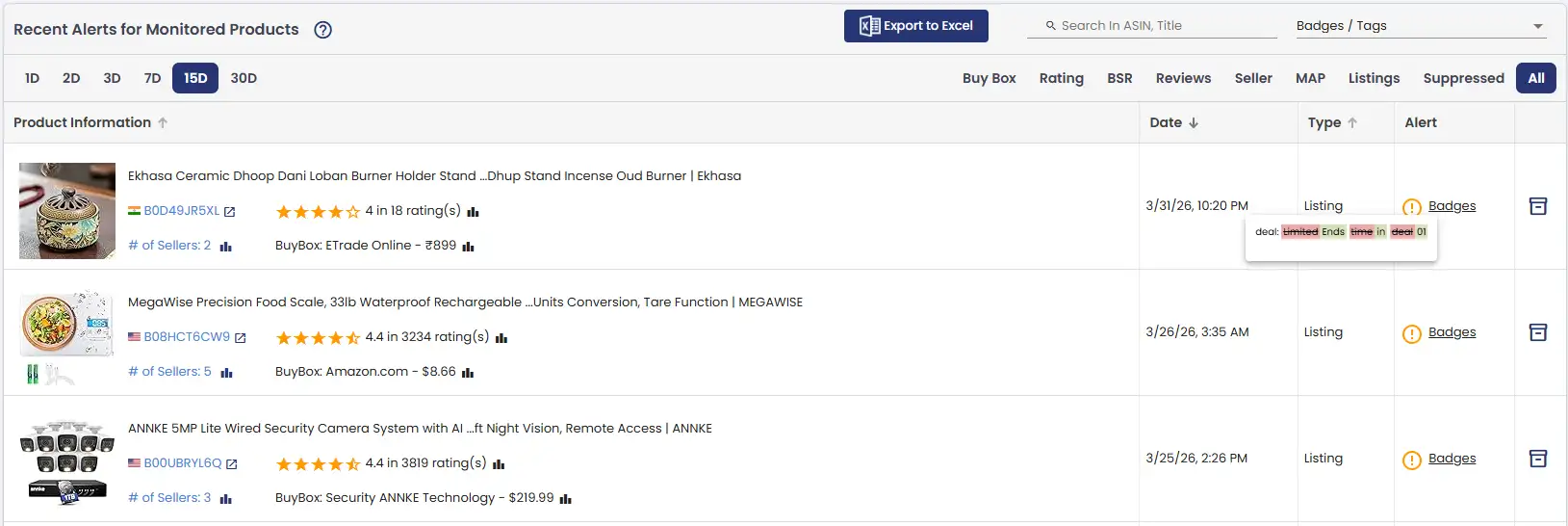
Amazon's product detail page features dedicated areas that highlight active deals and badges — things like Limited Time Deals, Prime Exclusive Discounts, Coupons, and various promotional badges that Amazon surfaces to draw shopper attention. These sections are some of the most visible parts of a listing, and what appears there can have a direct and immediate impact on click-through rates and conversions.
AmzMonitor tracks these areas on your product detail page and sends you an alert whenever something changes. A new deal going live, an existing promotion ending, or a badge appearing or disappearing — you'll know about it right away. This is just as useful for monitoring your own listings as it is for keeping an eye on competitors, since spotting when a rival activates a deal can help you react quickly and stay competitive.
The Alert column in the Alerts table provides a clear summary of exactly what changed in these sections, so you always have an up-to-date picture of the promotional activity surrounding your tracked products.
Some examples of the badges and tags tracked under this section include:
Deal & Promotional Badges
- Coupon / Deal badges (e.g. "Save 24%")
- Limited Time Deals
- Top Deals
- Best Price in 30 Days
- Countdown Deals (e.g. "Ends in 03:30:39")
- Prime Day Deals
- Black Friday Deals
- Final Sale
- Prime Big Deal
Return Badges
- Frequently Returned Item
- Frequently Returned
- Customers usually keep this item
Eligibility Badges
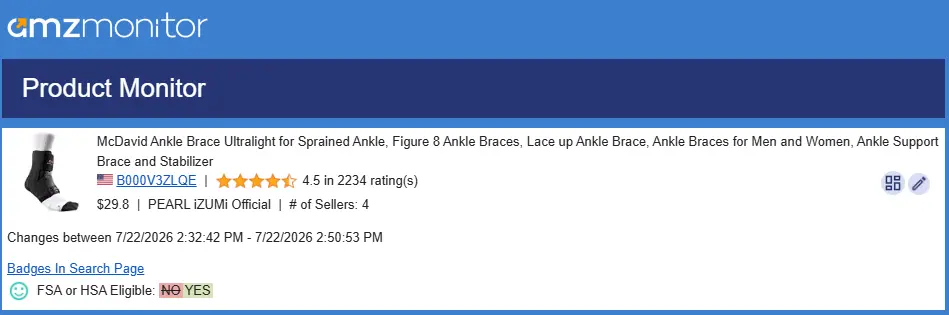
- FSA or HSA Eligible (for Amazon US Marketplace)
Best Seller Badge Top
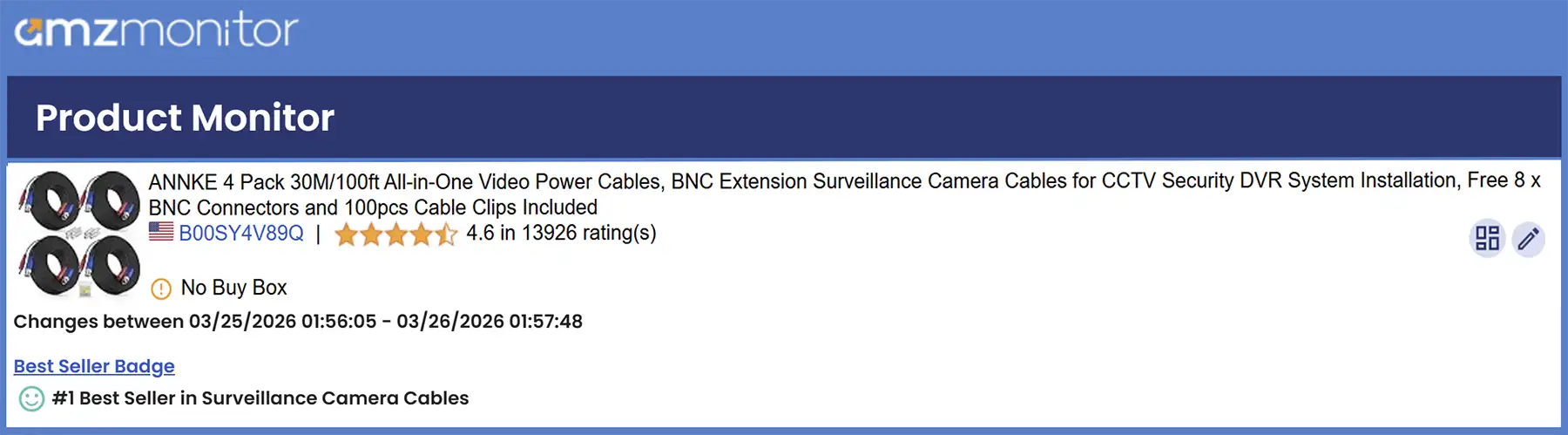
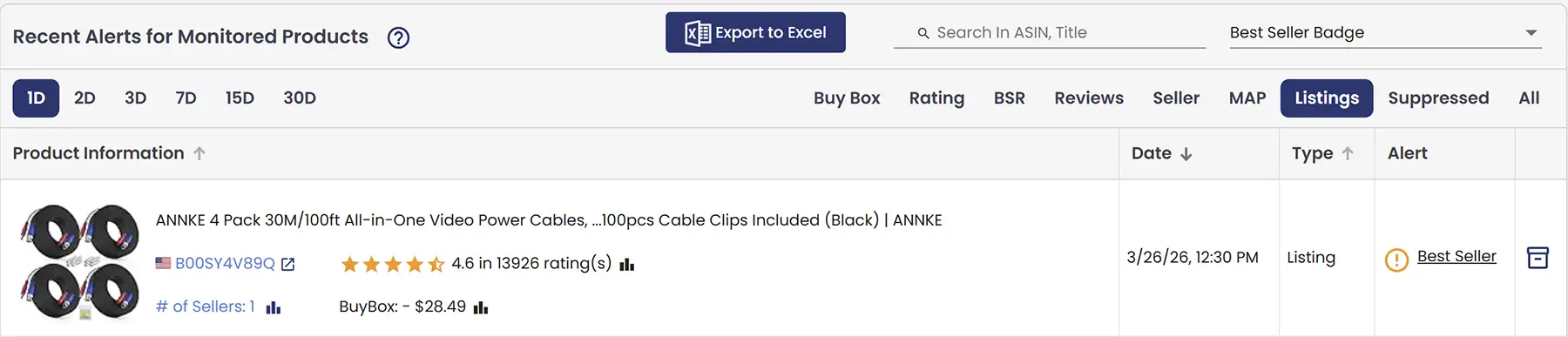
Best Seller Badge is awarded to products that achieve the #1 position in a specific category. This badge highlights top-performing products and significantly increases visibility and conversion rates, as customers tend to trust and prefer best-selling items. Earning the Best Seller Badge is a strong indicator of high sales velocity and competitive advantage within a category. It can lead to increased traffic, higher credibility, and more consistent sales performance.
AmzMonitor tracks Best Seller Badge status for your products and notifies you when your product earns or loses the badge. It also informs you which category the badge was achieved in, allowing you to clearly understand where your product is leading and capitalize on that success.
The Alert column in the Alerts table provides a brief summary with a link that opens a popup showing the full description change, and you can filter the table by field type using the top-left filter to easily view only the alerts that are relevant to you.
Brand Name Top
On Amazon, the Brand Name represents the official name of the brand associated with a product. It helps customers identify the manufacturer or brand behind the product and plays a key role in building trust, brand recognition, and search visibility on Amazon. AmzMonitor tracks the Brand Name for your products and notifies you if any changes occur. This ensures that you are immediately aware of any updates, mistakes, or unauthorized modifications to your brand information, helping you maintain consistency and protect your brand identity.
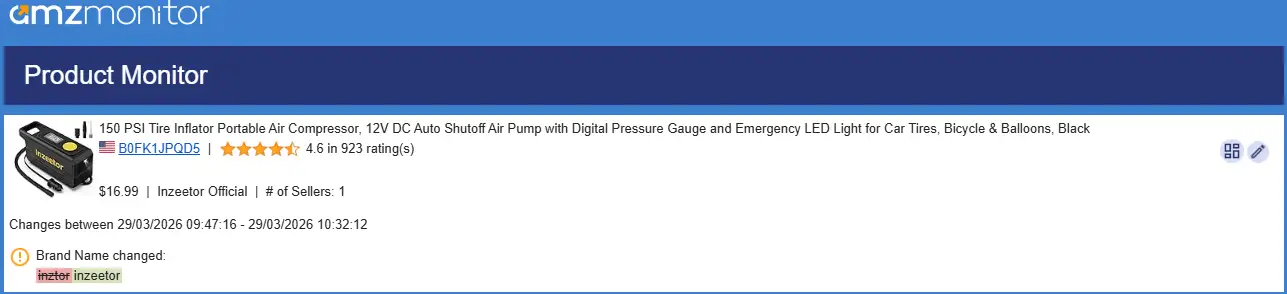
The Alert column in the Alerts table provides a brief summary with a link that opens a popup showing the full title change. Added text is highlighted with a green background while removed text is shown with a red background and strikethrough, making it easy to spot exactly what changed. You can also filter the table by field type using the top-right filter to easily view only the alerts that are relevant to you.

Bullets Top
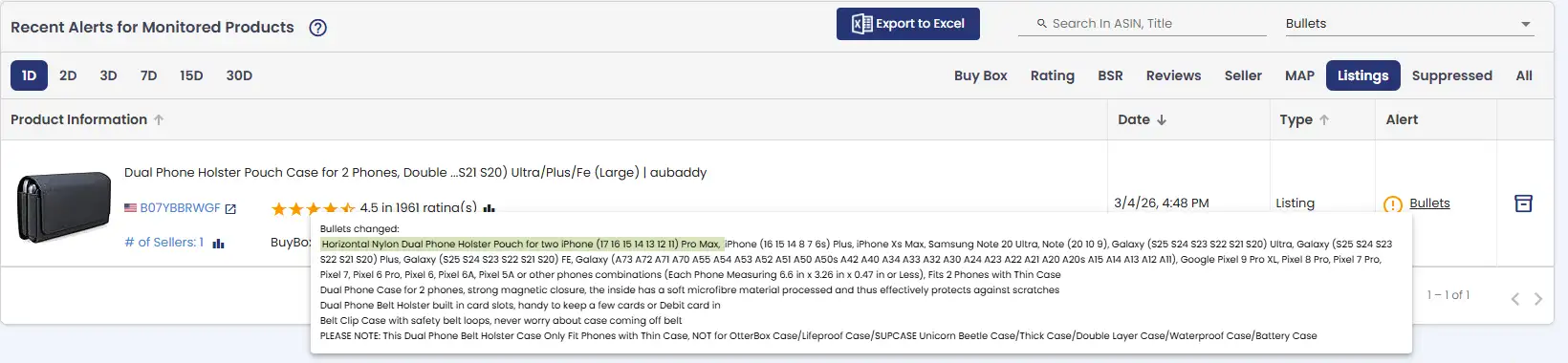
Product bullets are the key selling points listed on a product page. AmzMonitor tracks any changes to these bullets; detected changes appear in the popup, are recorded in the Product Alerts table, and are also sent via email notifications.
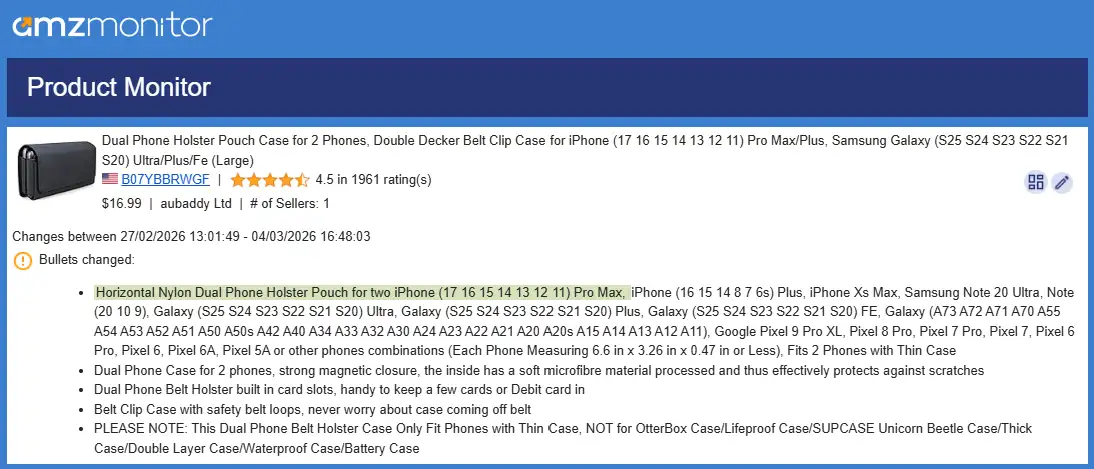
You can also filter the Alerts table by field type using the filter in the top left — making it easy to view only the alerts relevant to you.
Categories Top
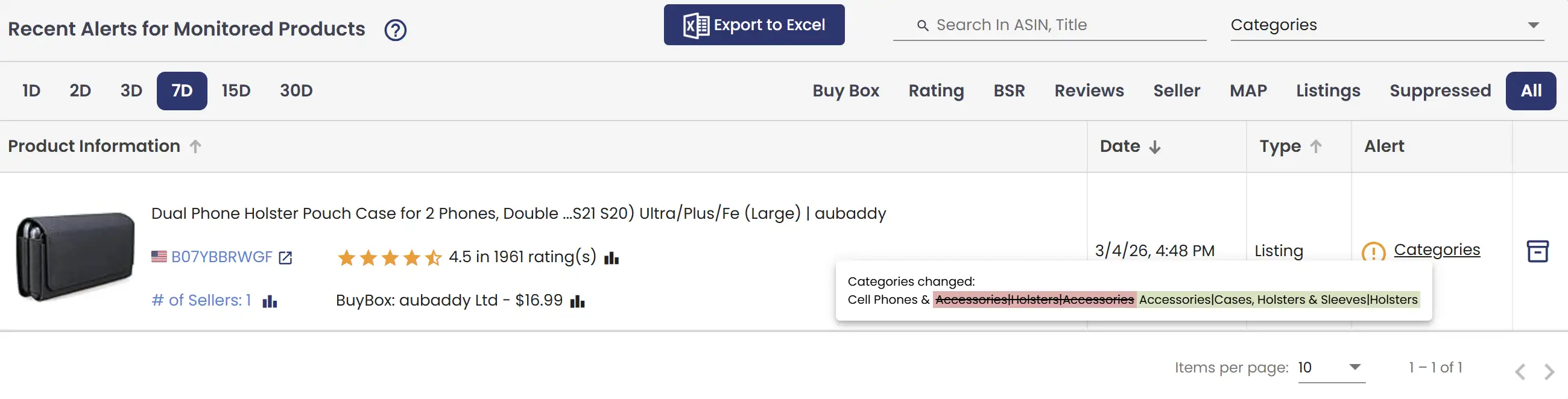
Product categories are the classifications Amazon assigns to products to organize them in its catalog (for example: “Electronics > Headphones” or “Home & Kitchen > Coffee Makers”). AmzMonitor tracks these category changes. When a product’s category is updated, the change is sent via email notifications and logged in the Product Alerts table. This makes it easy to see which products have updated categories and take action if necessary.
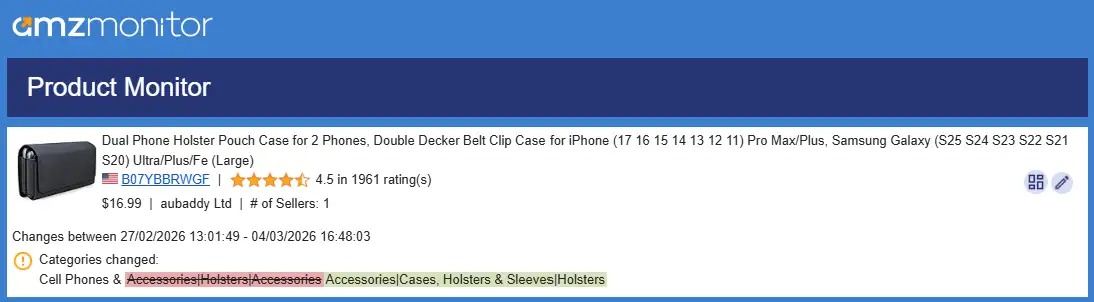
The Alert column in the Alerts table provides a brief summary with a link that opens a popup showing the full description change, and you can filter the table by field type using the top-left filter to easily view only the alerts that are relevant to you.
Description Top
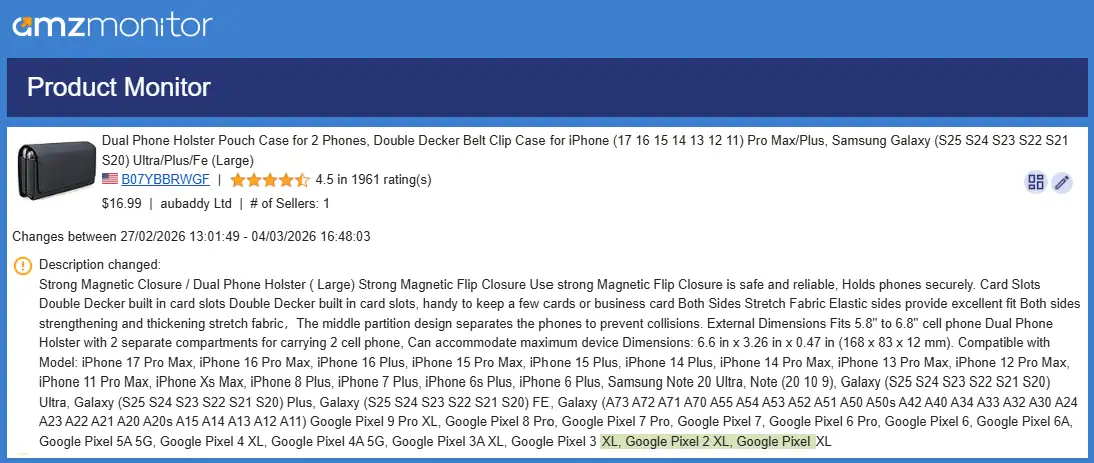
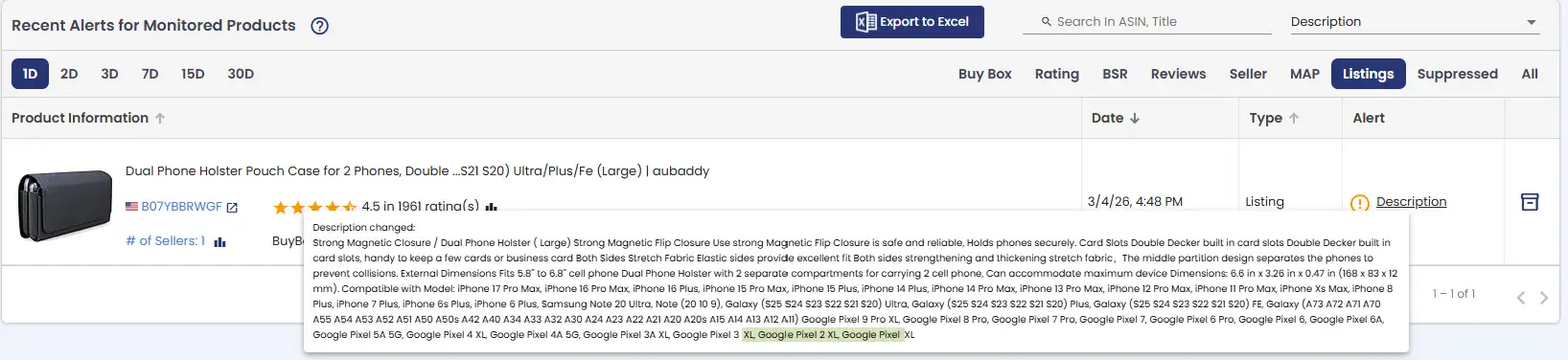
AmzMonitor also tracks the product description for every product you monitor. When a change is detected, you'll receive an email notification and the change will appear in your Alerts table. Newly added text is highlighted with a green background, while removed text is shown with a red background and strikethrough, so you can immediately see exactly what was added or removed.
Since description changes can be lengthy, the Alert column in the Alerts table displays a brief summary with a link — clicking it opens a popup showing the complete diff of the description change.
Description From Brand & Description From Manufacturer
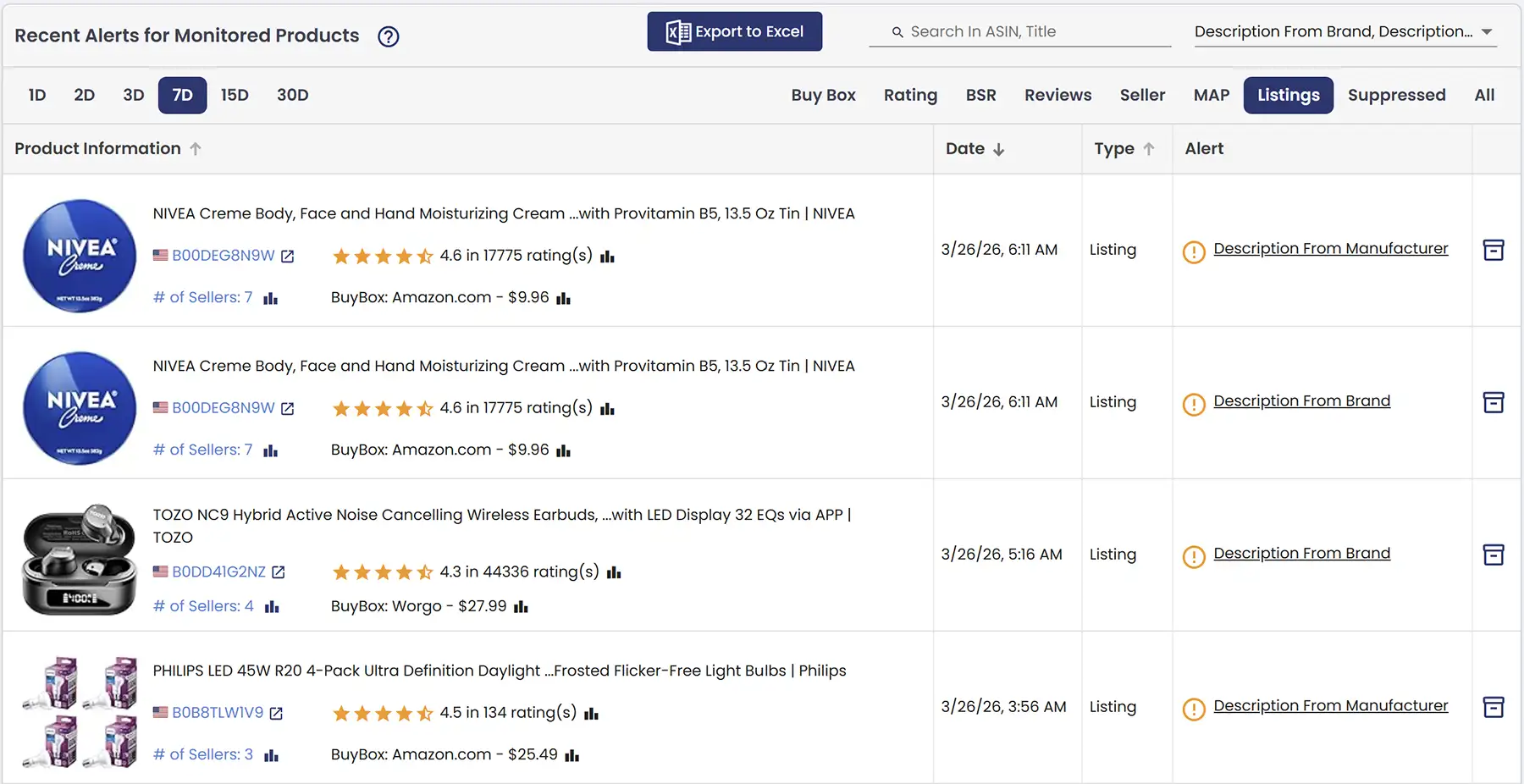
On Amazon, a product’s Description from Brand is the content created or provided by the brand itself, highlighting features, benefits, and brand messaging. The Description from Manufacturer is the content supplied by the product manufacturer, often including technical details, specifications, and usage instructions. Both of these fields can contain rich content such as images, tables, and formatted text.
AmzMonitor tracks both Description from Brand and Description from Manufacturer and notifies you of any changes. Currently, these fields are monitored as text, so even the smallest change—whether in text or formatting—can trigger an alert.
Dimensions Top
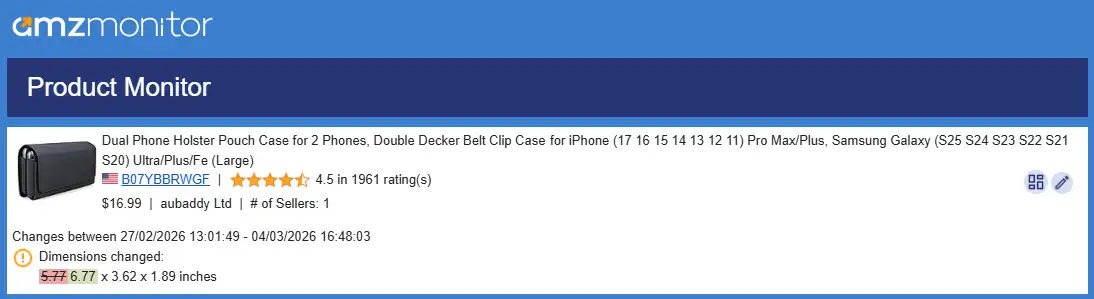
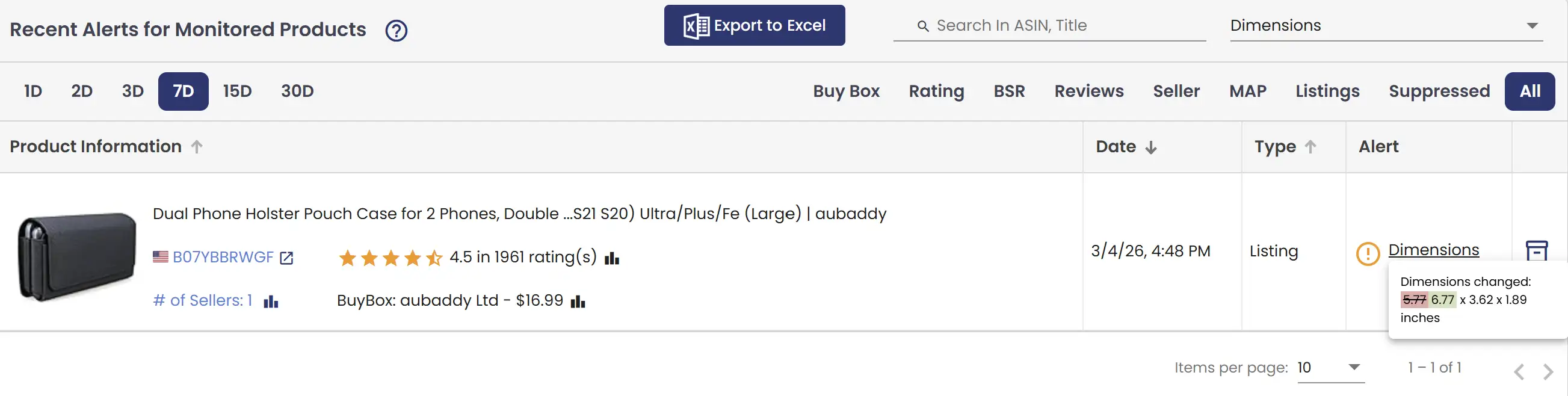
Product dimensions refer to the size measurements of a product, such as length, width, and height, listed on its detail page (e.g. 10×5×2 inches). AmzMonitor tracks these changes; the update is shown in the Product Alerts table, and also sent via email notifications.
The Alert column in the Alerts table provides a brief summary with a link that opens a popup showing the full description change, and you can filter the table by field type using the top-left filter to easily view only the alerts that are relevant to you.
Images Top
Your product images are one of the first things shoppers notice — and one of the last things most sellers think to monitor. A changed, removed, or unauthorized image on your listing can quietly hurt your conversion rate long before you catch it manually.
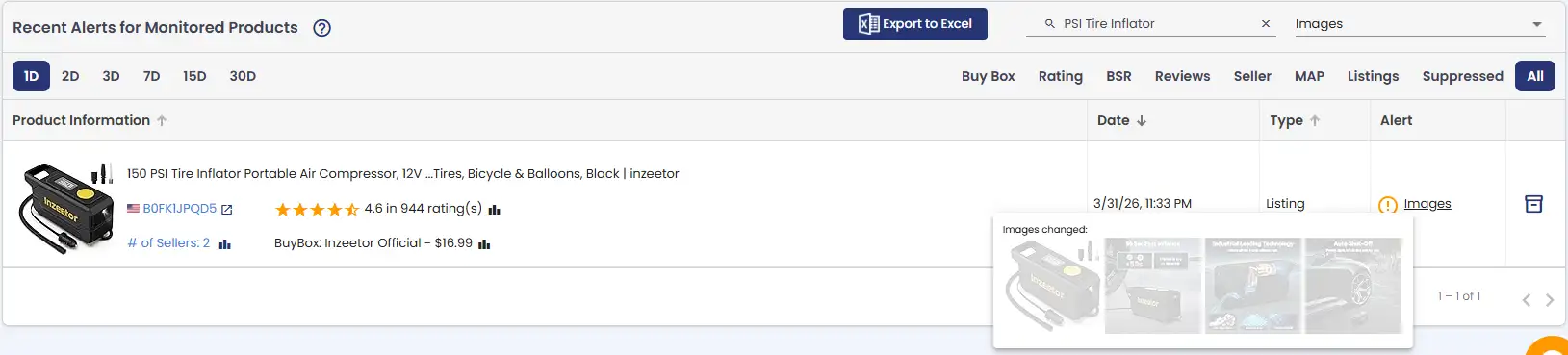
AmzMonitor tracks all images on your product detail page and notifies you whenever the image lineup changes — whether a new image has been added or an existing one has been removed. In the alert popup, the changes are displayed visually: newly added images appear bright and clear, while removed images are shown faded, making it immediately obvious what changed and in which direction — no guesswork needed.
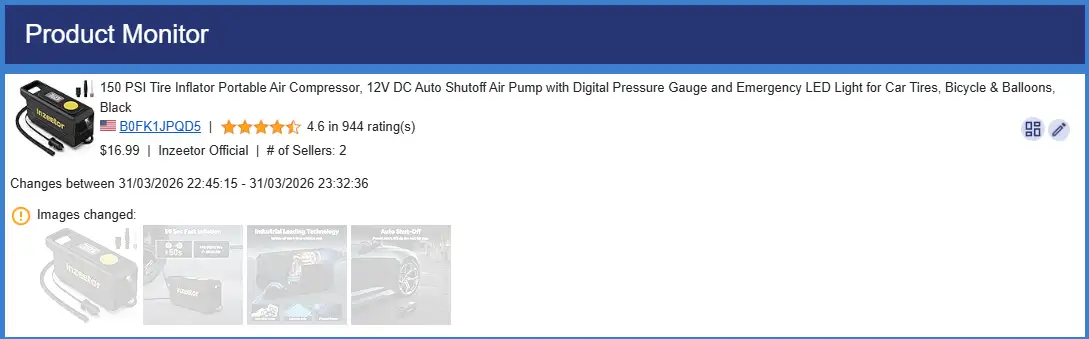
The Alert column in the Alerts table provides a brief summary with a link that opens a popup showing the full image change, and you can filter the table by field type using the top-right filter to easily view only the alerts that are relevant to you.
Model Number Top
Every product on Amazon can have a model number — a manufacturer-assigned identifier that helps customers and sellers distinguish between specific versions or configurations of a product. It's especially important in categories like electronics, automotive parts, and appliances, where buyers often search by model number directly to make sure they're getting exactly the right item.
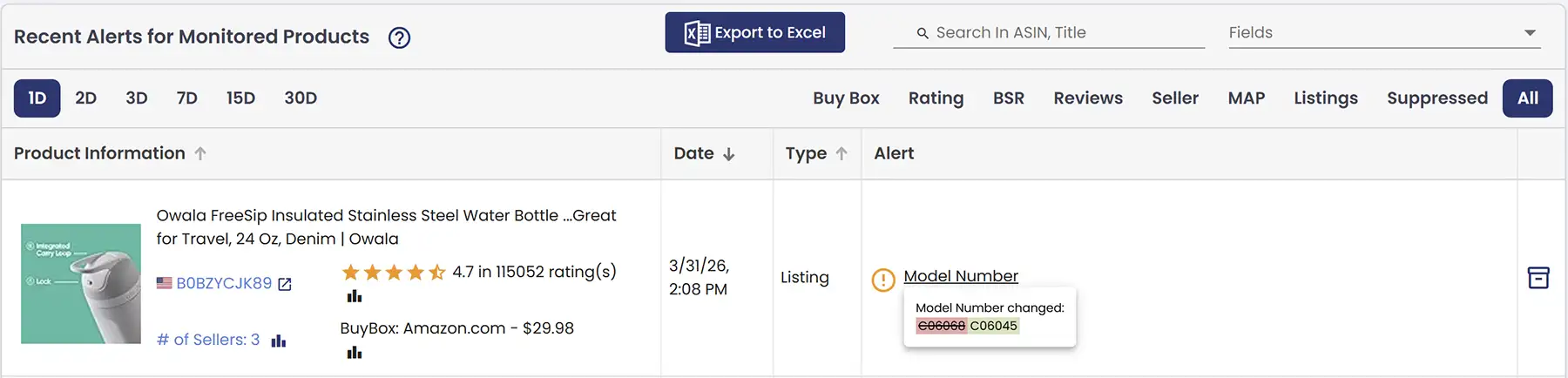
AmzMonitor tracks the Model Number field on your product listings and notifies you immediately if it changes. An unexpected model number update might seem minor, but it can signal unauthorized listing edits, accidental modifications, or even a hijacker tampering with your product details — all of which can erode customer trust and lead to returns or negative reviews.
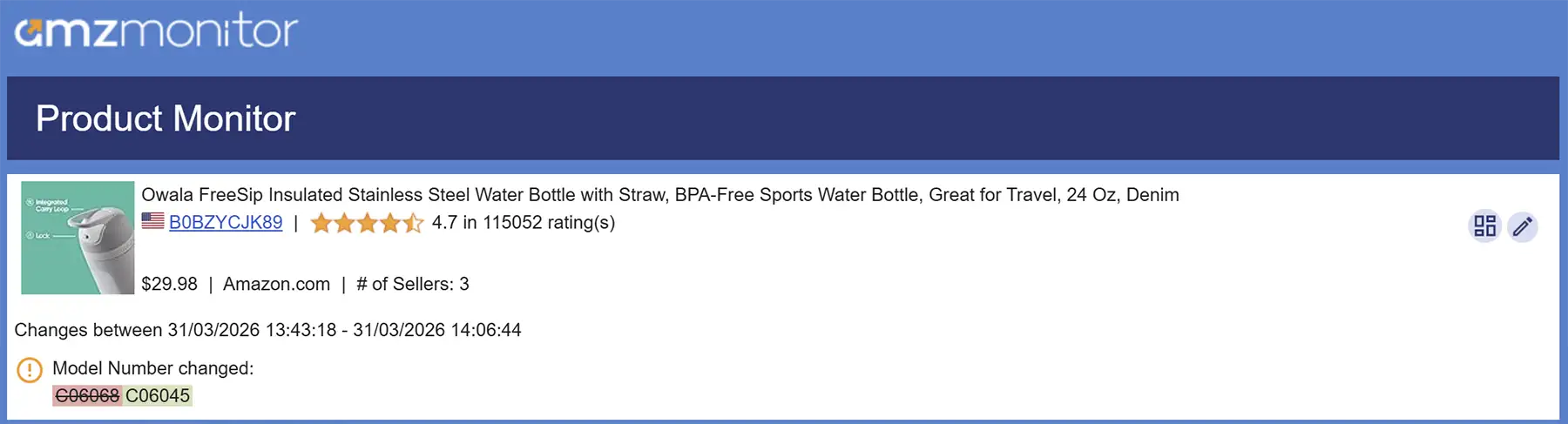
The Alert column in the Alerts table provides a brief summary with a link that opens a popup showing the full change. Added text is highlighted with a green background while removed text is shown with a red background and strikethrough, so you can instantly see what was changed and take action if needed.
Parent ASIN Change Top
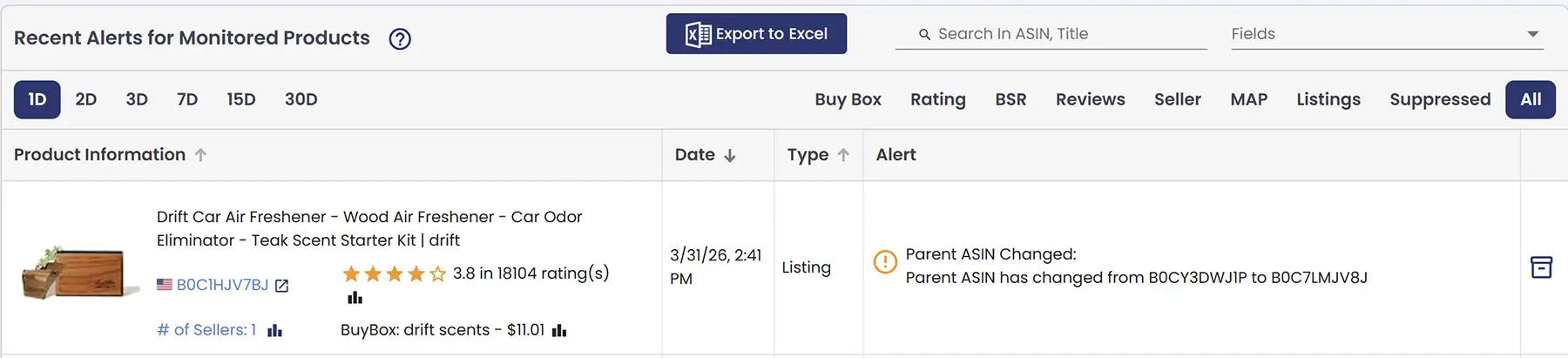
On Amazon, the Parent ASIN is the top-level identifier that groups product variations together under a single listing. It's the backbone of variation structure — individual child ASINs for different sizes, colors, or styles all sit beneath it. When the Parent ASIN changes, it typically means the product has been moved to a different variation family, which can affect how your listing appears, how reviews are shared across variations, and how the product is indexed by Amazon's search algorithm.
AmzMonitor tracks the Parent ASIN for your products and notifies you immediately if it changes. A Parent ASIN change might seem like a technical detail, but the downstream effects can be significant — inherited reviews may shift, keyword rankings can reset, and your product's visibility in search results may take an unexpected hit before you even realize something has changed. There are three distinct scenarios AmzMonitor watches for: a product's Parent ASIN switching from one variation family to another, a product leaving a variation family entirely and becoming a standalone listing, or a previously standalone product being assigned to a Parent ASIN. Each of these changes is tracked and reported separately so you always know exactly what happened.
When a change is detected, you'll receive a clear notification showing exactly what changed — the previous Parent ASIN and the new one — so you can immediately investigate whether the change was intentional or something that needs to be corrected.
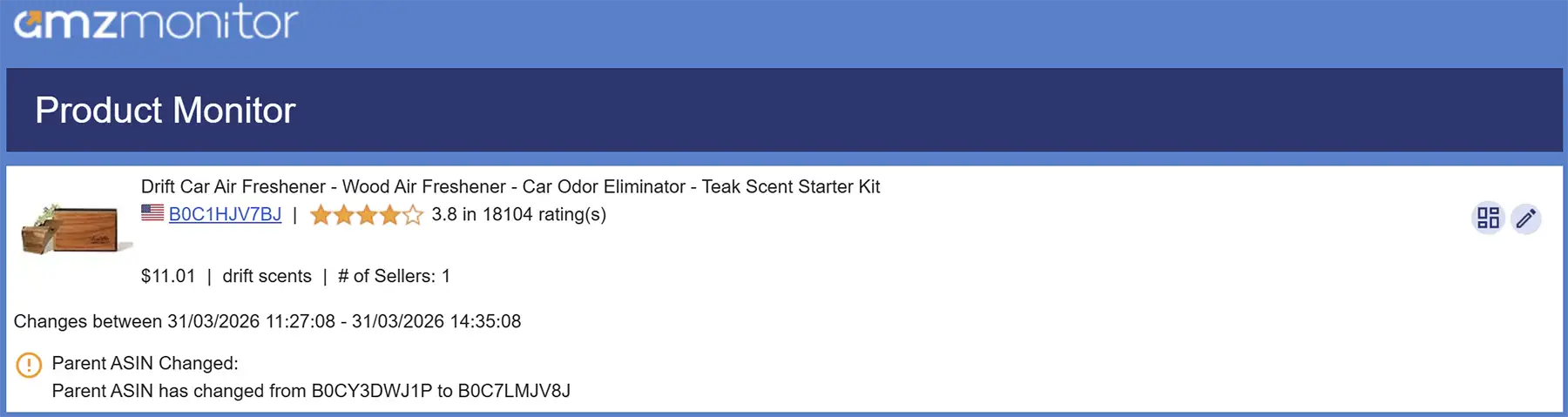
The Alert column in the Alerts table displays a clear text summary of exactly what changed, so you always have the full picture at a glance.
Shipping Weight Top
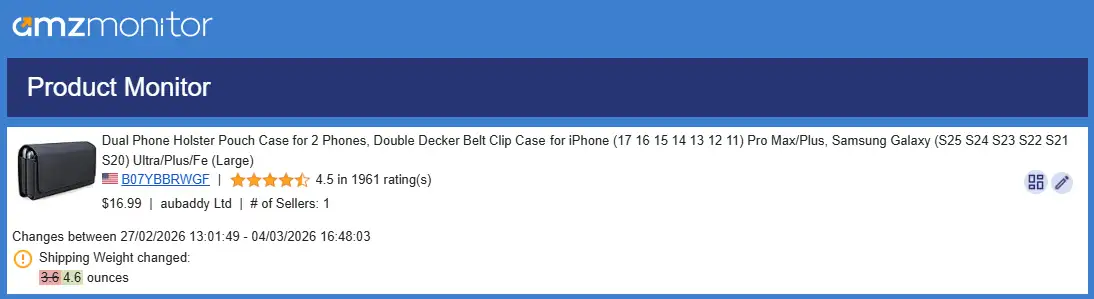
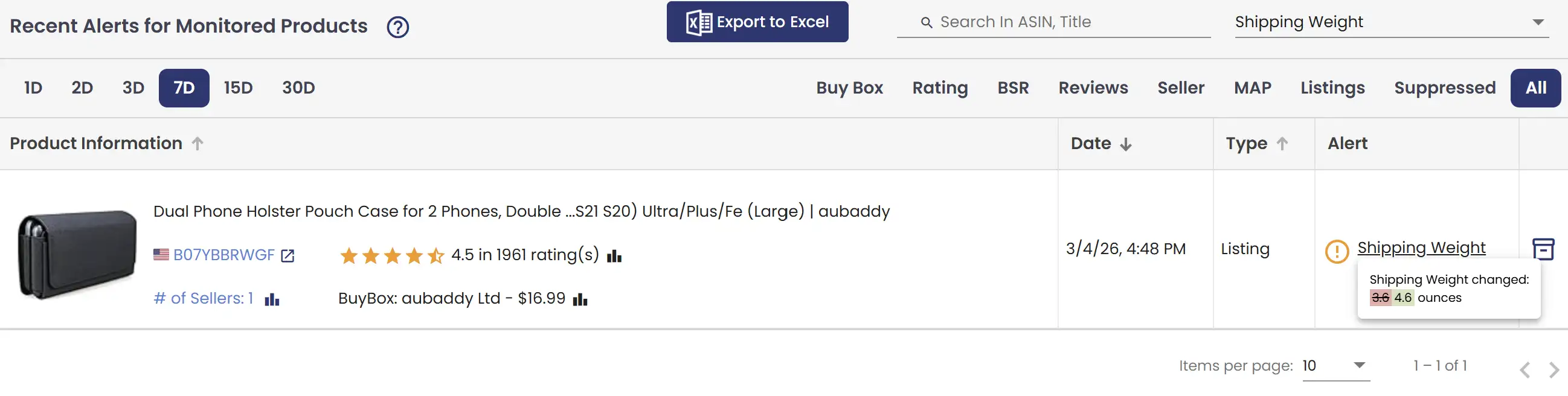
Shipping weight refers to the total weight of the product including its packaging, as listed on the product detail page (e.g. 1.5 lbs). AmzMonitor tracks these changes; the update is shown in the Product Alerts table, and also sent via email notifications.
The Alert column in the Alerts table provides a brief summary with a link that opens a popup showing the full description change, and you can filter the table by field type using the top-left filter to easily view only the alerts that are relevant to you.
Thumbnail Url Top
The thumbnail is the main image customers see before they even click on your product — in search results, sponsored ads, and category pages. It's often the single biggest factor in whether someone clicks through to your listing or scrolls right past it. A sudden or unauthorized change to your thumbnail can have an immediate and measurable impact on your click-through rate and sales.
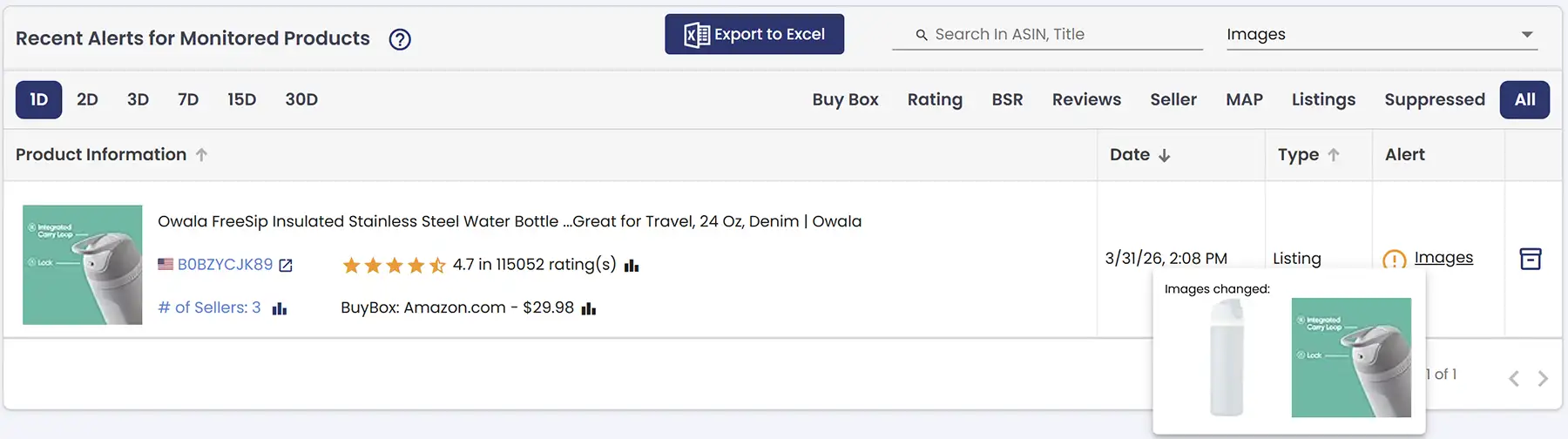
AmzMonitor tracks the Thumbnail URL of your products and notifies you the moment it changes. In the alert popup, the old and new thumbnails are displayed side by side — with the previous image shown faded to clearly indicate it has been replaced. This way you can instantly see what your listing looked like before and after, without having to dig through your own records.
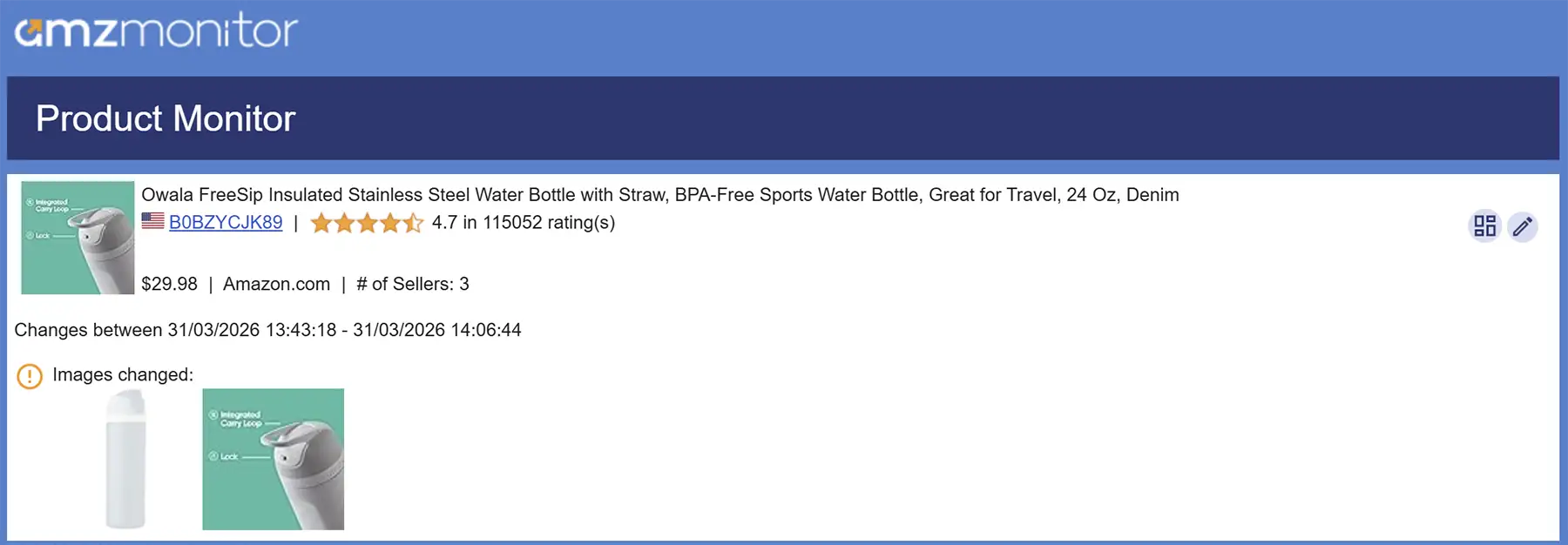
The Alert column in the Alerts table provides a brief summary with a link that opens a popup showing the full change, and you can filter the table by field type using the top-right filter to easily view only the alerts that are relevant to you.
Title Top
On Amazon, the Title is the primary name displayed for a product on its detail page. It's the first thing customers see in search results and on the product page itself, making it one of the most critical elements for both search visibility and click-through rates. A well-optimized title includes the brand name, key features, size, quantity, and relevant keywords — directly influencing how Amazon ranks the product and whether shoppers choose to click on it.
AmzMonitor tracks the Title for your products and notifies you immediately if any changes occur. Whether it's an accidental edit, an unauthorized modification, or a competitor hijacking your listing and altering the title, you'll know right away — giving you the chance to review and restore it before it impacts your sales or rankings.
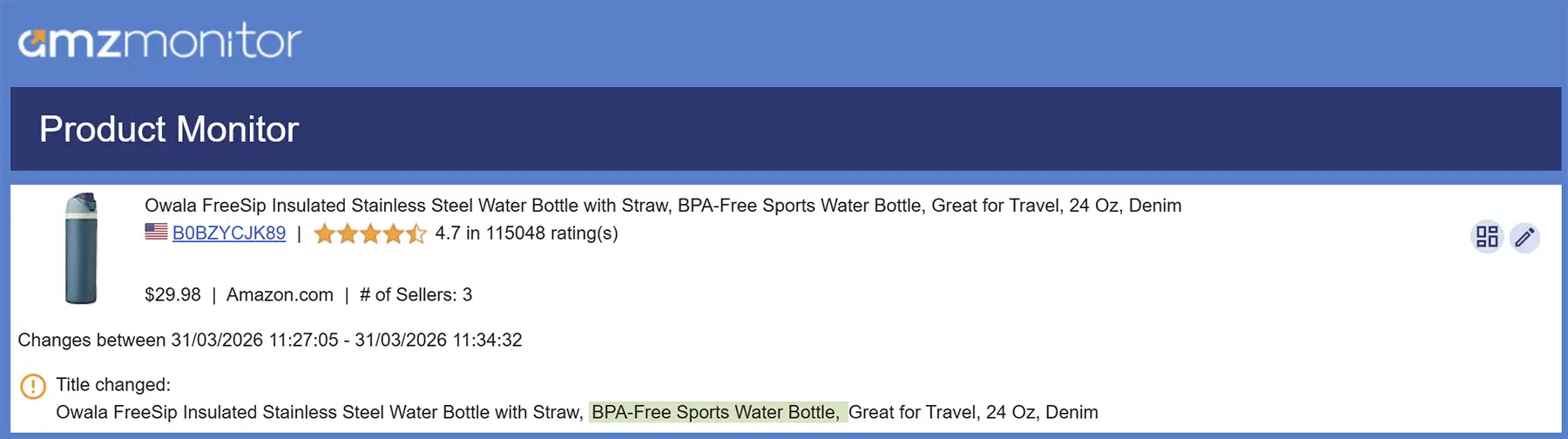
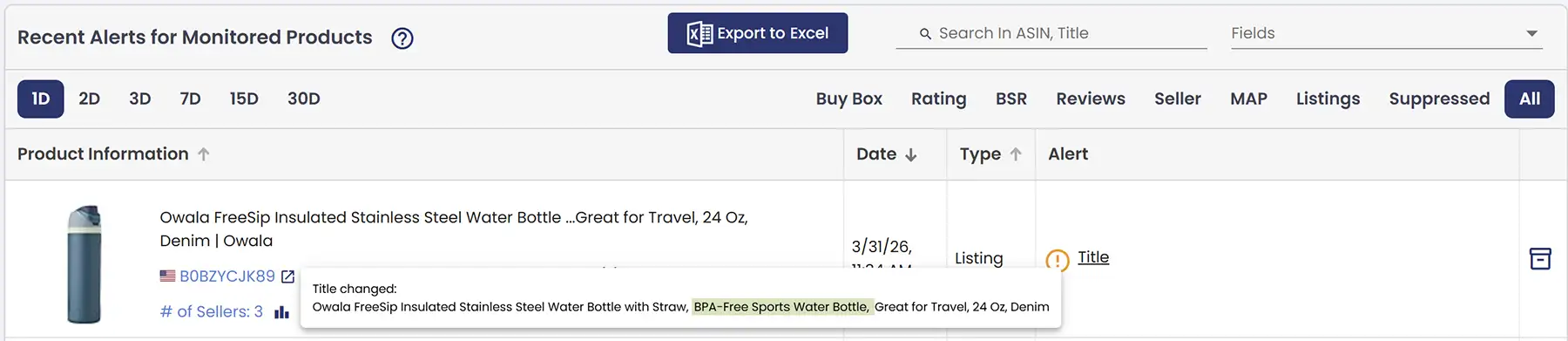
The Alert column in the Alerts table provides a brief summary with a link that opens a popup showing the full title change. Added text is highlighted with a green background while removed text is shown with a red background and strikethrough, making it easy to spot exactly what changed. You can also filter the table by field type using the top-right filter to easily view only the alerts that are relevant to you.
Variant Info Top
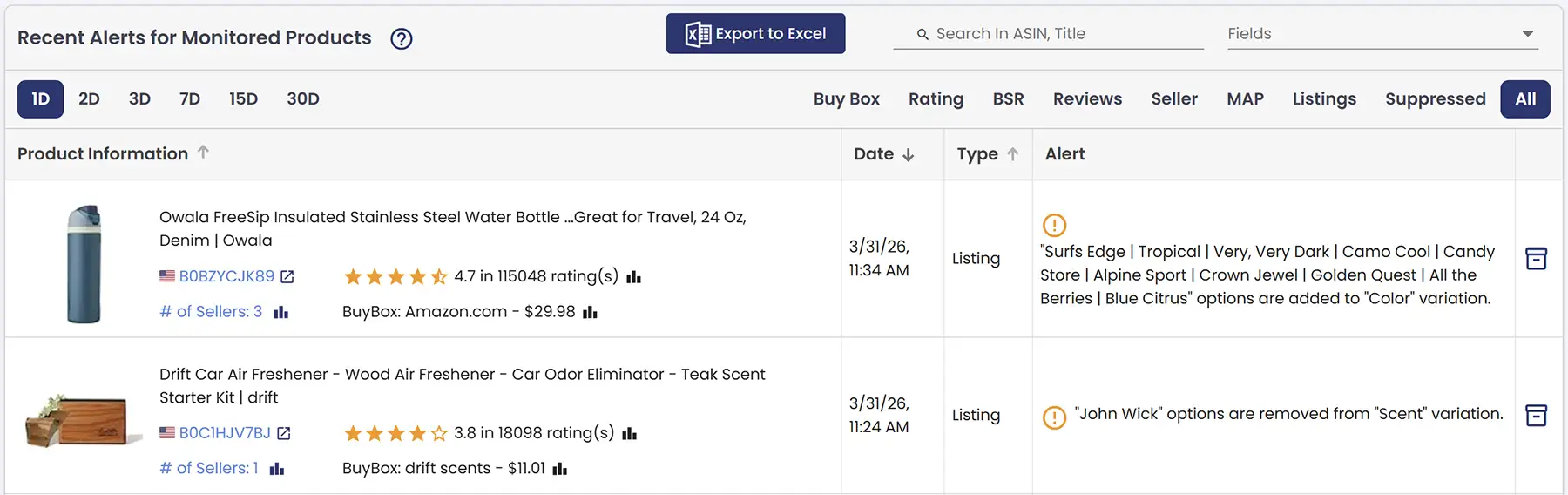
Product variations — color, size, style, and similar attributes — are one of the most powerful tools a seller has on Amazon. They keep all versions of a product under one listing, making it easier for customers to find exactly what they want without bouncing between multiple pages. But that also means any unexpected change to your variation structure can quietly cause problems before you even realize something is off.
AmzMonitor tracks the variation structure of your products and notifies you whenever changes occur. This includes when new options are added to an existing variation type, when existing options are removed, or when the variation types themselves change. Unauthorized additions, accidental removals, or unexpected restructuring of your variations can confuse customers, affect your inventory management, and quietly hurt your conversion rates before you even notice.
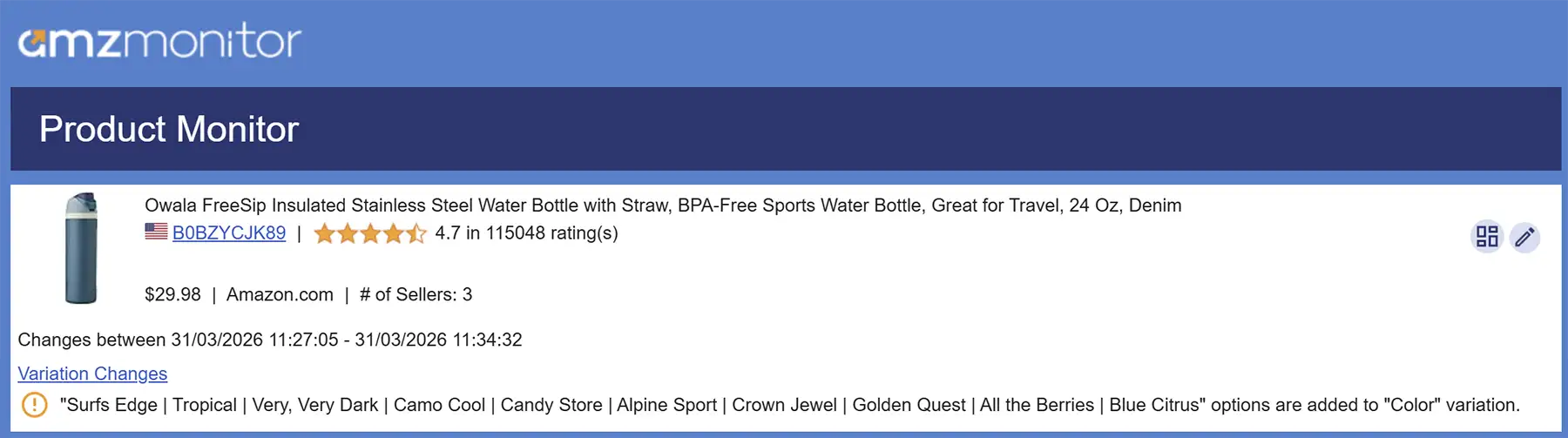
The Alert column in the Alerts table displays a clear text summary of exactly what changed — which options were added or removed and under which variation type.
Buy Box Top
Buy Box is the section on a product page where customers can directly add an item to their cart. While multiple sellers may offer the same product, only one seller at a time wins the Buy Box, making it a critical factor for driving sales.
AmzMonitor tracks who owns the Buy Box for a product and monitors the Buy Box price over time. AmzMonitor also tracks changes in Buy Box ownership and price, and notifies you instantly with alerts whenever these changes occur. This helps you quickly react to competition, adjust your pricing strategy, and stay competitive on high-value listings.
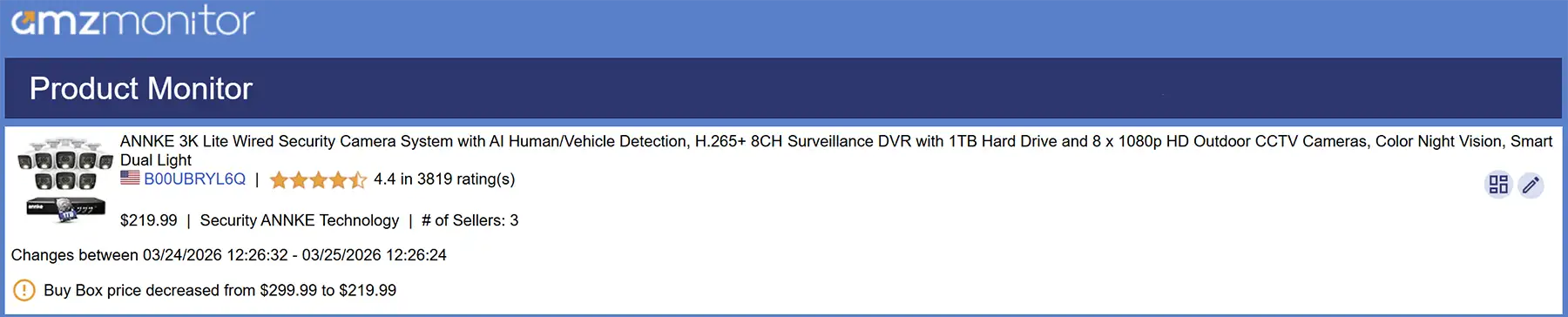
When you enable the Buy Box Price field, you will receive alerts only for increases or decreases in the Buy Box price.
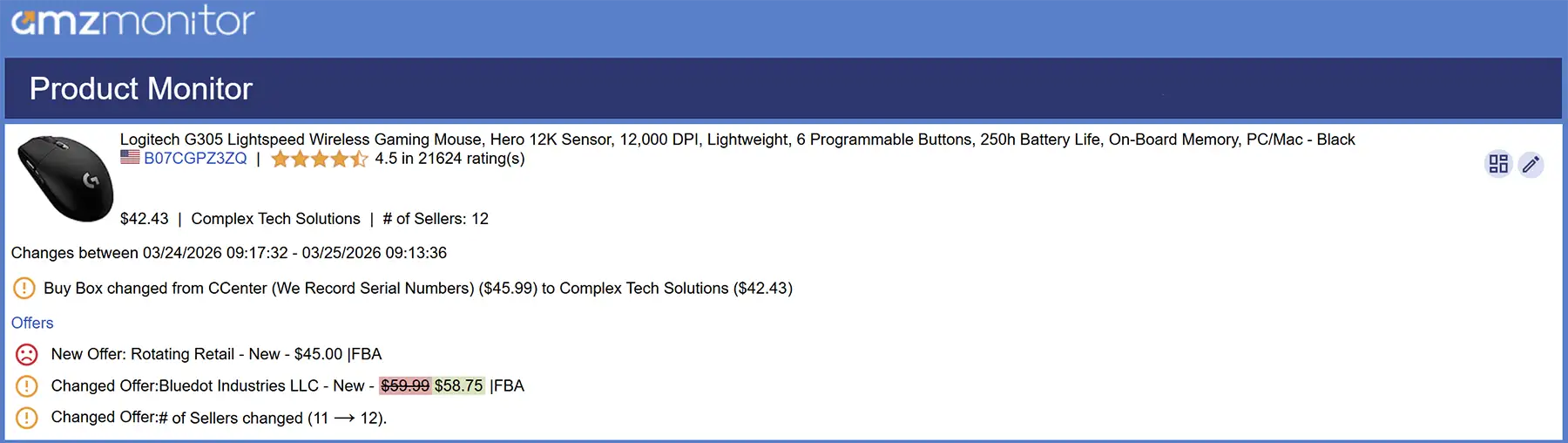
When you enable the Buy Box Seller Name field, you will receive emails about which seller owns the Buy Box and whenever the Buy Box ownership changes.
If you provide your seller information, AmzMonitor will also show whether you own the Buy Box in your reports, and notify you via email whenever you win or lose the Buy Box. This helps you quickly react to competition and adjust your pricing strategy.

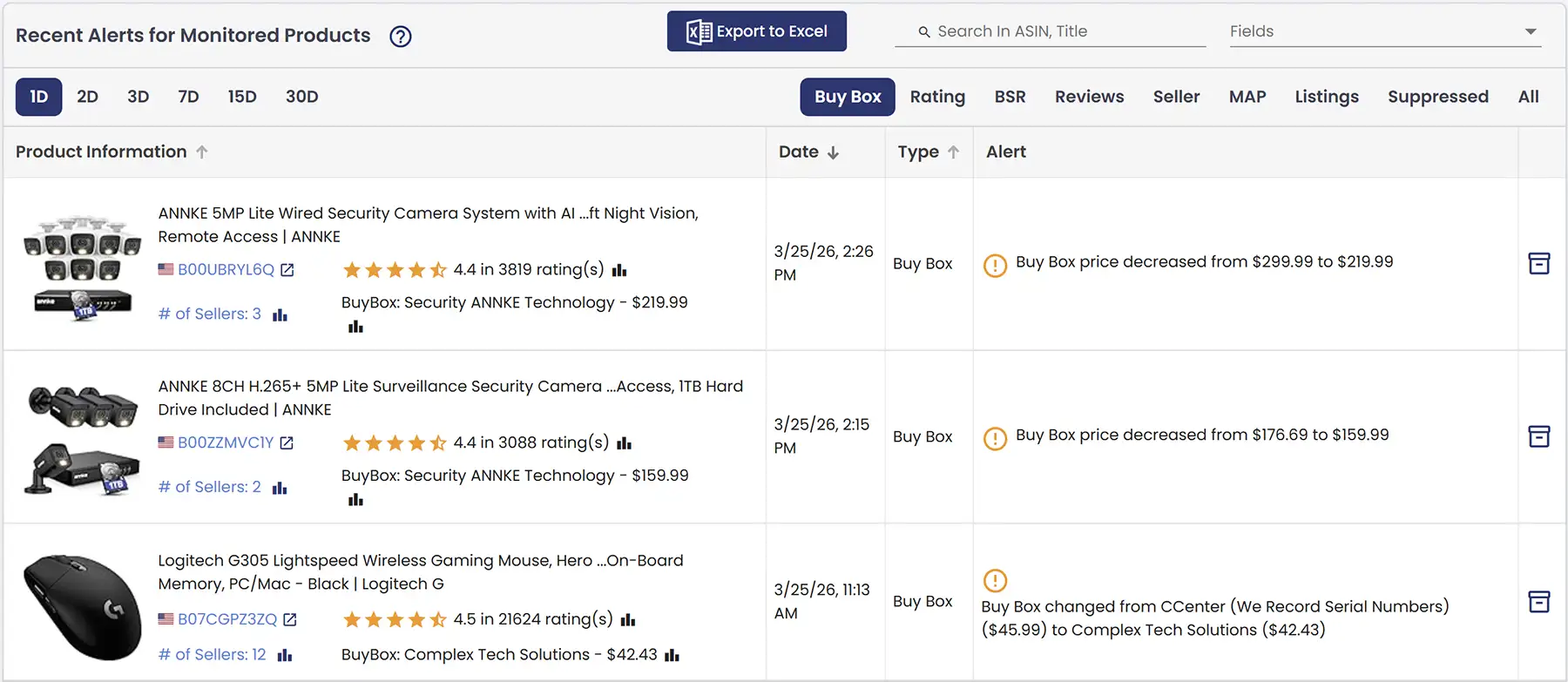
The Alert column in the Alerts table provides a brief summary, and you can filter the table by field type using the top-left filter to easily view only the alerts that are relevant to you.
MAP Top
MAP, or Minimum Advertised Price, is the lowest price that a seller is allowed to advertise for a product. It’s an important tool for maintaining brand value and preventing price erosion across multiple sellers.
AmzMonitor tracks all sellers and their prices for a product, and when you add a product, you can set a MAP price. If any seller lists the product below this MAP price, AmzMonitor automatically generates an alert and notifies you. This allows you to quickly identify pricing violations, maintain pricing consistency, and protect your brand’s value across the marketplace.
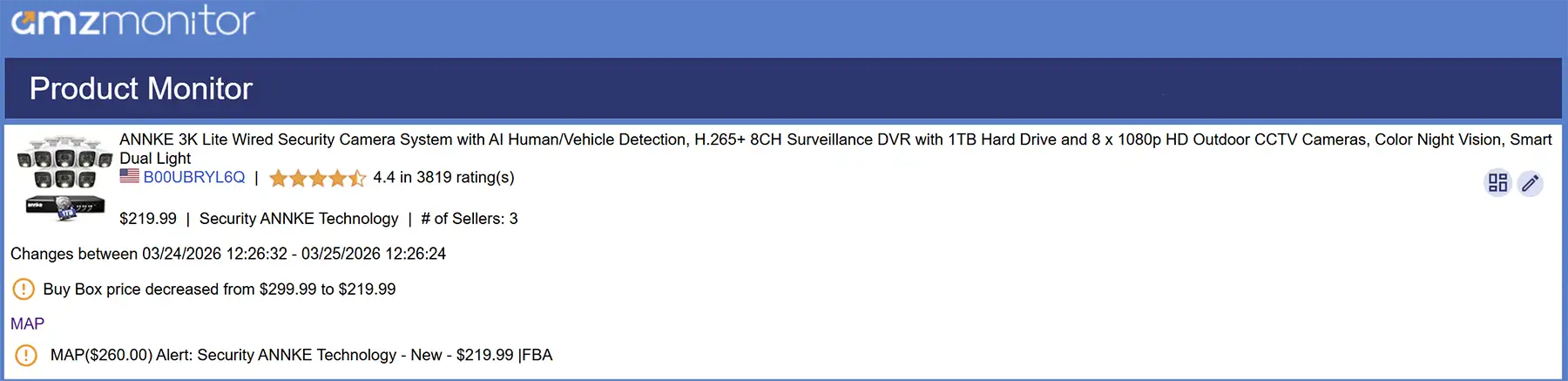
The Alert column in the Alerts table provides a brief summary with a link that opens a popup showing the full title change. Added text is highlighted with a green background while removed text is shown with a red background and strikethrough, making it easy to spot exactly what changed. You can also filter the table by field type using the top-right filter to easily view only the alerts that are relevant to you.
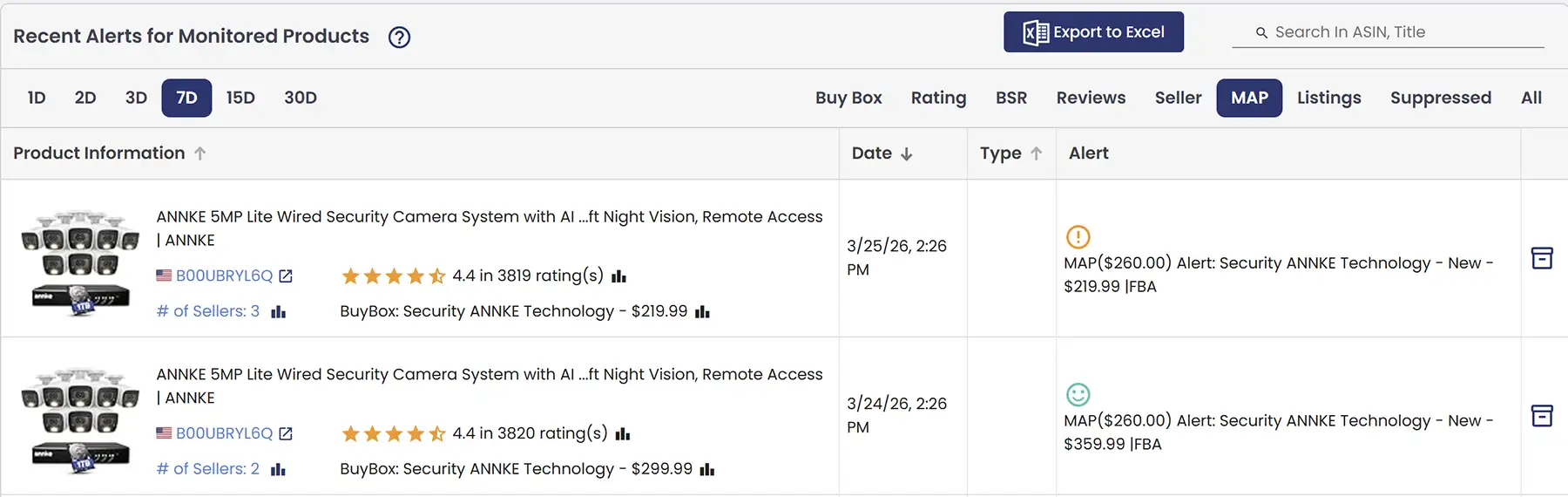
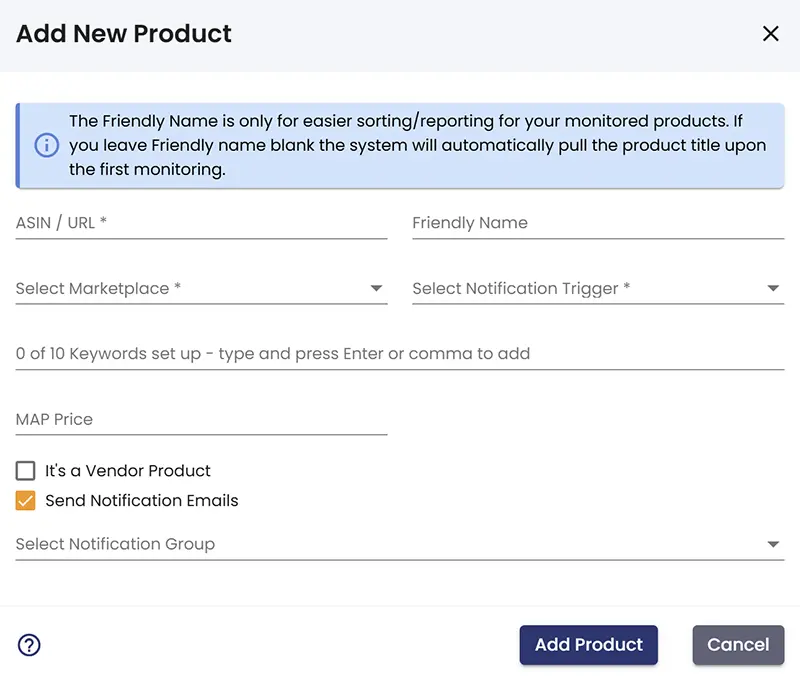
To activate MAP alerts, the MAP field must be enabled in the Product Notification Trigger section. Additionally, a MAP price needs to be set for the product. You can define this MAP price either when adding a new product or later by editing the product and entering the value in the MAP Price field that appears in the pop-up window.
Sellers Top
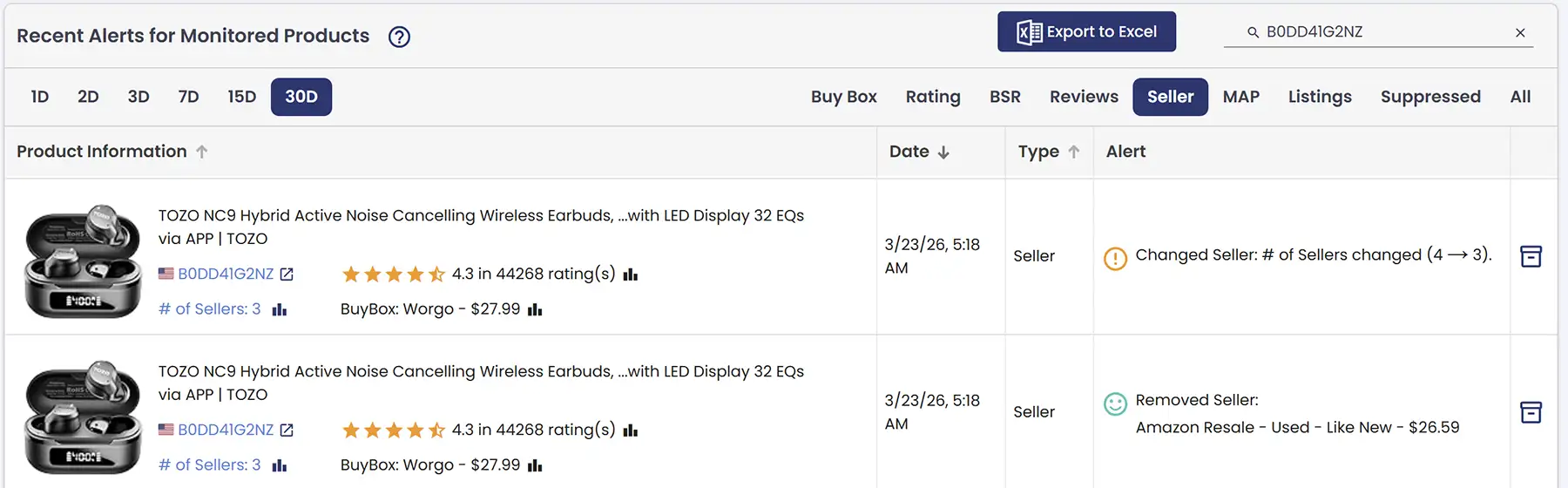
On Amazon, a single product listing can have multiple sellers offering the exact same item. Each seller may list the product at a different price and in different conditions such as new, used, or refurbished. This structure makes it essential to monitor seller activity in order to fully understand the level of competition on a product.
AmzMonitor tracks all sellers and offers associated with a product. It allows you to see how many sellers are competing on a listing, what prices they are offering, and in which condition they are selling the product. All of this data is presented in a detailed and structured way within the Seller Report. To learn more about the Seller Report, please click here.
AmzMonitor also monitors key competitive changes. It detects when a new seller enters a listing or when an existing seller leaves, and sends instant alerts when the total number of sellers increases or decreases. This allows you to quickly spot shifts in competition and respond accordingly with your pricing and strategy.
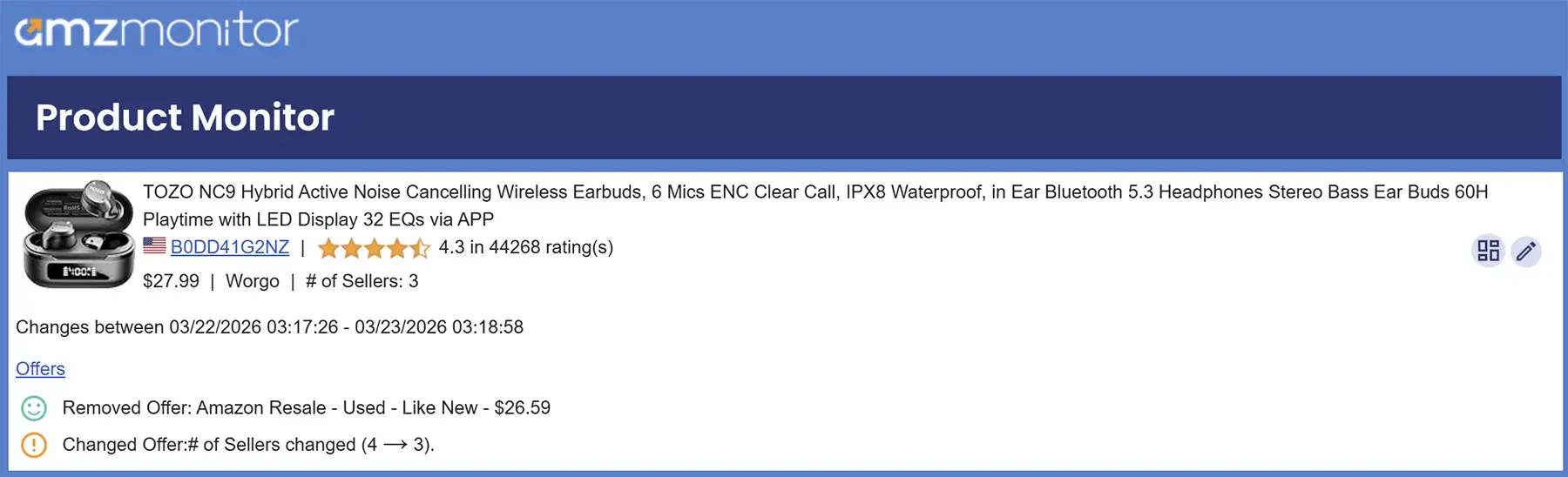
The Alert column in the Alerts table provides a brief summary, and you can filter the table by field type using the top-left filter to easily view only the alerts that are relevant to you.
Review Top
Customer reviews are one of the most influential elements on any Amazon product page. They shape buying decisions, affect search rankings, and reflect how real customers feel about your product. Keeping track of what's being said — and when — is something every serious seller needs to stay on top of.
AmzMonitor monitors the reviews displayed directly on your product detail page and notifies you when a new one appears there. It's worth understanding why this distinction matters: Amazon recently restricted the full reviews page to logged-in users only. Since AmzMonitor never asks for your Amazon login credentials — your account security comes first — the product detail page is where monitoring happens. This is the same page every shopper lands on, so it's the most relevant place to watch anyway.
The reviews shown on the product detail page are featured reviews — a curated selection that Amazon's algorithm picks to represent the most useful and relevant feedback for that product. Not every new review makes it here. Amazon decides which ones get featured, so when AmzMonitor detects a new review on this page, it's one Amazon itself has chosen to highlight to your potential buyers.
When a new featured review appears, you'll receive an alert so you can read it immediately — whether it's glowing feedback worth acknowledging or a critical review that needs a thoughtful response before it influences too many purchase decisions.
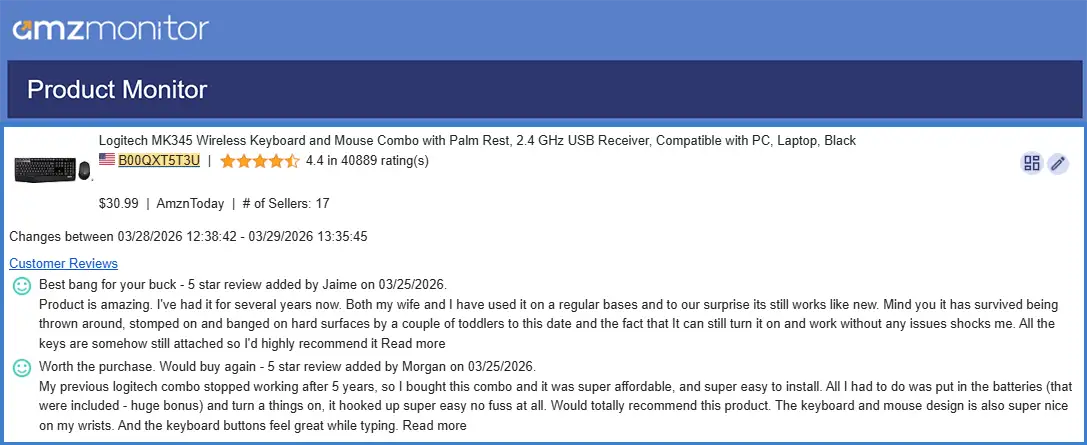
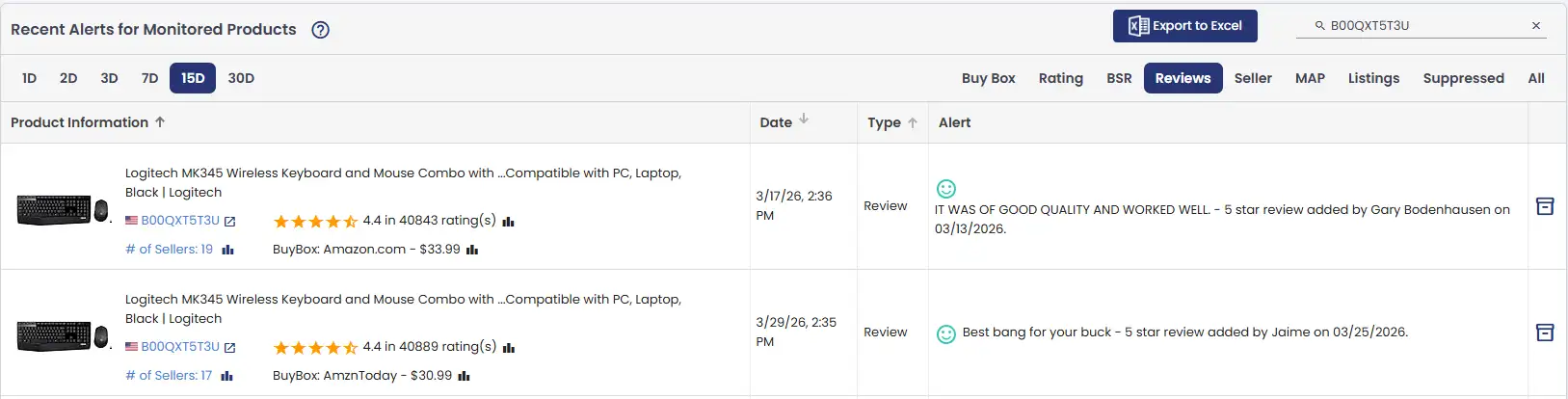
The Alert column in the Alerts table displays a clear text summary of the new review, so you can assess it at a glance without having to navigate to the listing yourself.
Beyond individual review alerts, AmzMonitor also captures the Customer Says data from your product detail page — an AI-generated summary that Amazon itself produces to reflect the overall sentiment and recurring themes across all reviews. AmzMonitor collects this data and compiles it into a dedicated report, giving you a clear overview of the general review landscape across all the products you're tracking — all in one table. For more information on the Customer Says report, you can visit this page.
There's also a Get for Any Variant option worth knowing about. On Amazon, some reviews are tied to the parent ASIN and can appear across multiple child variants at the same time. By default, AmzMonitor filters these out to keep your review report clean and free of duplicates. If you enable this option, those shared reviews will appear in the report alongside the specific ASIN they're associated with, giving you full visibility across all variants. For more details on the review report, you can visit this page.
Reviews Rating Top
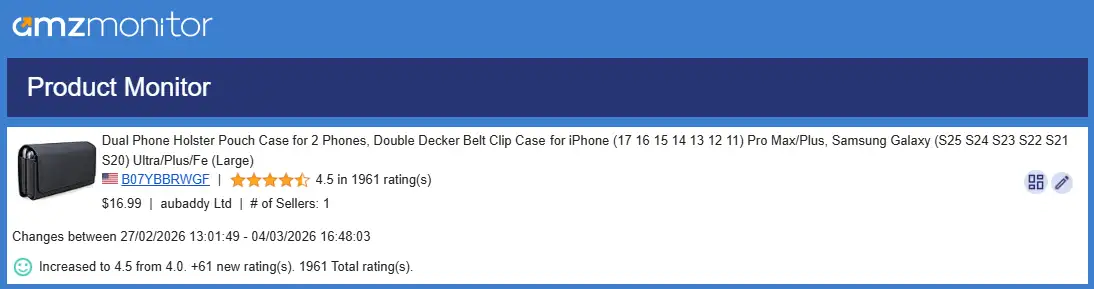
AmzMonitor tracks the star rating and total rating count for every product you monitor on Amazon. When a change is detected, you'll receive an email notification like the one below — for example, if a product's average rating rises from 4.0 to 4.5 with 61 new ratings bringing the total to 1,961, you'll be notified instantly so you never miss a shift in product reputation.
Every alert is also listed in the Alerts table, so you can review all past and current notifications in one place.
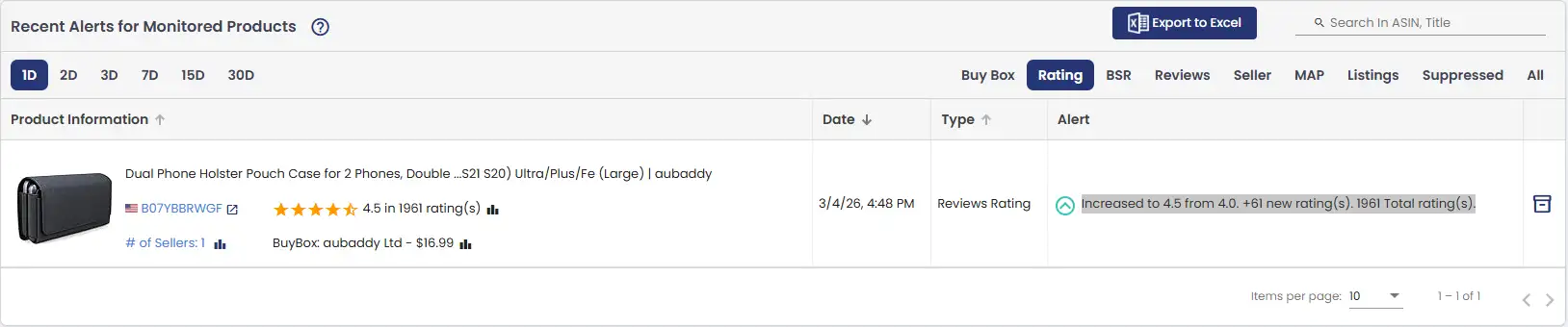
Alongside each alert, you'll also see the latest monitored product information — including the product's current rating, review count, and other tracked details — reflecting the most recent snapshot captured at the time the alert was triggered.
Best Seller Rank Top
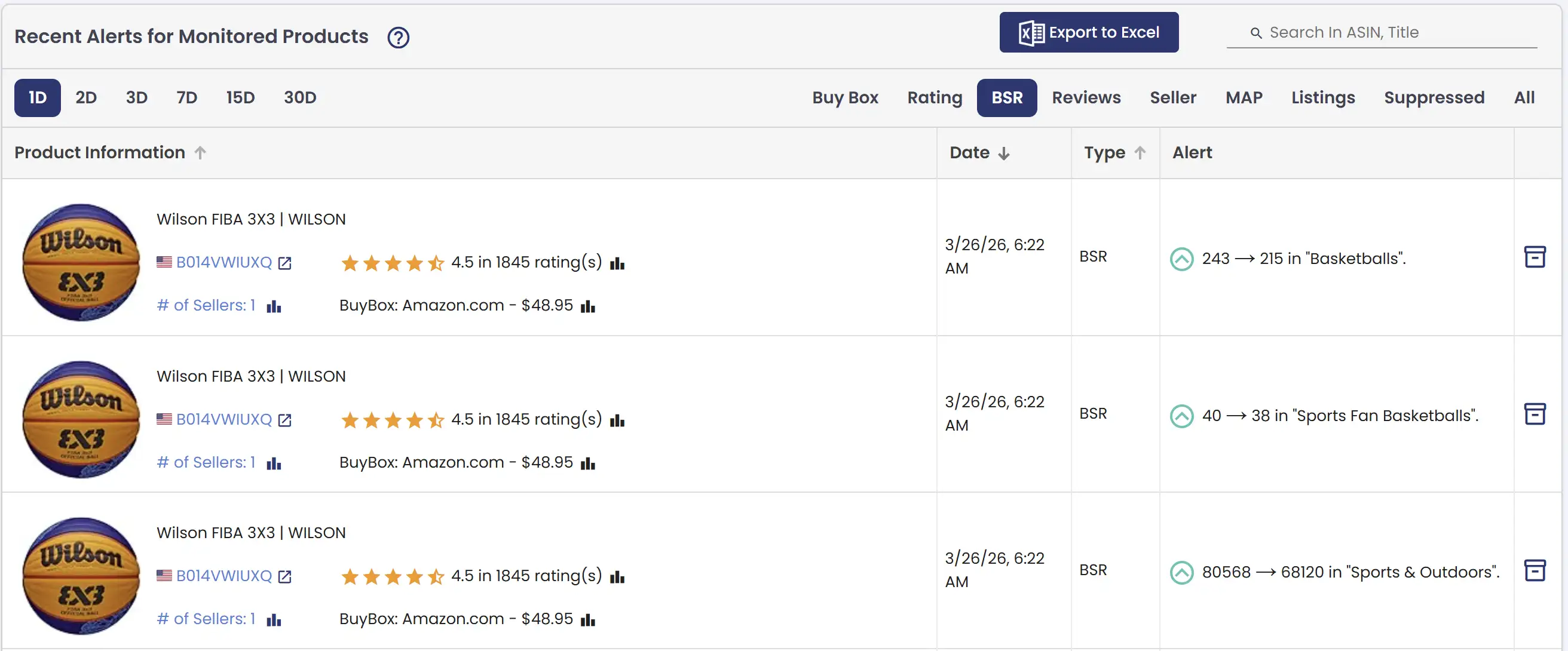
Best Seller Rank (BSR) indicates how well a product is selling within its category. A lower rank means higher sales performance, making BSR one of the most important indicators of a product’s demand and market position. Understanding your product’s ranking helps you evaluate sales performance, track demand trends, and benchmark against competitors. Changes in BSR can signal shifts in sales velocity, seasonality, or increasing competition, allowing you to make more informed pricing and inventory decisions.
AmzMonitor tracks Best Seller Rank across all categories listed on the product detail page. It continuously monitors ranking changes and sends alerts whenever there is a significant increase or decrease, helping you stay on top of performance trends and react quickly to market changes.
💡 If you have defined a threshold for Best Seller Rank in the Product Notification Trigger Settings, notifications will only be triggered for ranking changes within your specified threshold. BSR values that exceed this threshold will not generate notifications. However, all ranking changes will continue to be recorded and displayed on the Alerts page, ensuring you always have full visibility into product performance.

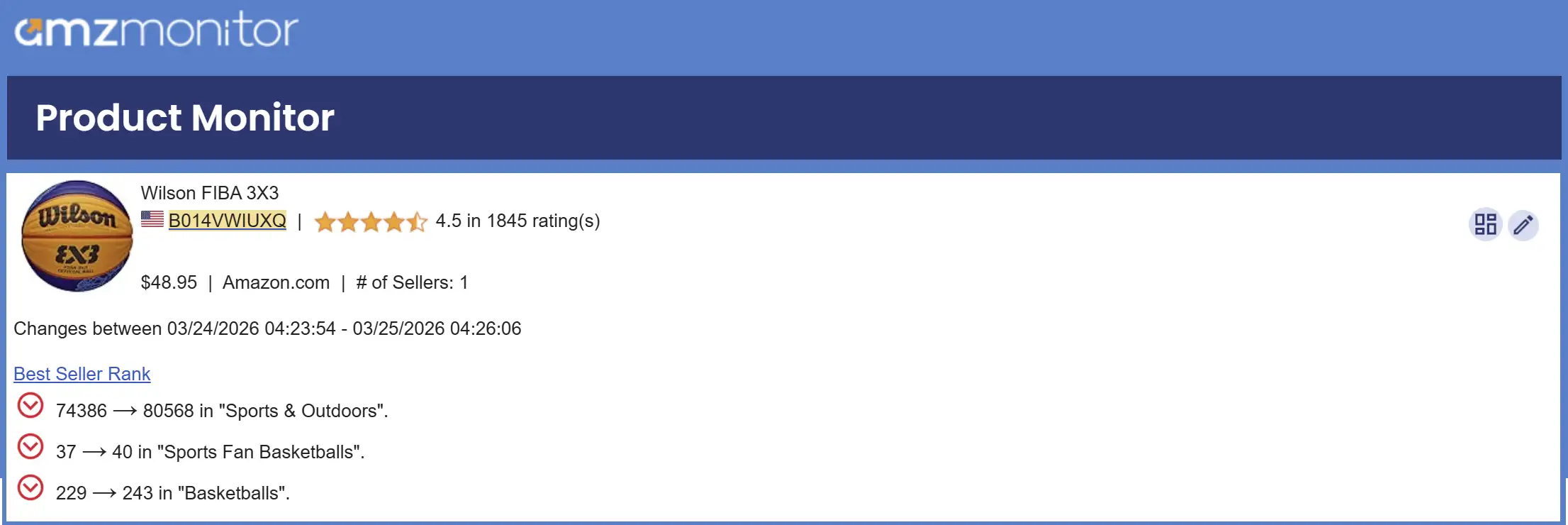
The Alert column in the Alerts table provides a brief summary, and you can filter the table by field type using the top-left filter to easily view only the alerts that are relevant to you.