Keyword Monitoring allows you to track how your products rank on Amazon for specific search terms, automatically and on a daily basis. Instead of manually searching for your product on Amazon and checking where it appears, AmzMonitor does it for you and keeps a full history of every ranking change, giving you a clear picture of how your visibility trends over time.
When you add a keyword, you select the marketplace and the ASINs you want to track for that keyword. From that point on, AmzMonitor searches Amazon for that keyword daily, scans through all available search result pages, and checks whether each assigned ASIN appears in the results. If found, it records the exact ranking position and compares it against the previous day's. If the ranking has changed — moved up, dropped down, or disappeared entirely — that change is flagged and included in your daily report. If the product isn't found in the results, that's flagged too.
Keyword monitoring runs once per day on a fixed schedule. Unlike product monitoring, there are no custom intervals — and that's intentional. Keyword rankings reflect longer-term trends in visibility and search performance, not hourly fluctuations. Daily tracking gives you a meaningful, trend-based view of how your products move in search results over time.
✅ Ranking positions are displayed in two ways: the overall position (e.g. 100) and the page-level position (e.g. 4th on page 3). This way you can see both where your product ranks in the overall results and exactly which page it appears on and where on that page.
💡 There is a limit of 10 keywords per ASIN. Your total keyword capacity represents the total number of keywords tracked across all your ASINs — so 10 products with 10 unique keywords each equals 100 keywords used. If you assign the same keyword to all 10 products, that still counts as 10 keywords used.
💡 We strongly recommend only assigning keywords that are genuinely relevant to each ASIN. Tracking irrelevant keywords doesn't just use up your quota — it clutters your alerts with data that doesn't reflect real search behavior. The goal is to track how your product actually performs for the terms shoppers use to find it, not to monitor every possible keyword in bulk.
Notifications & Alerts
AmzMonitor gives you multiple ways to stay on top of your keyword ranking changes.
-
Daily Email Report
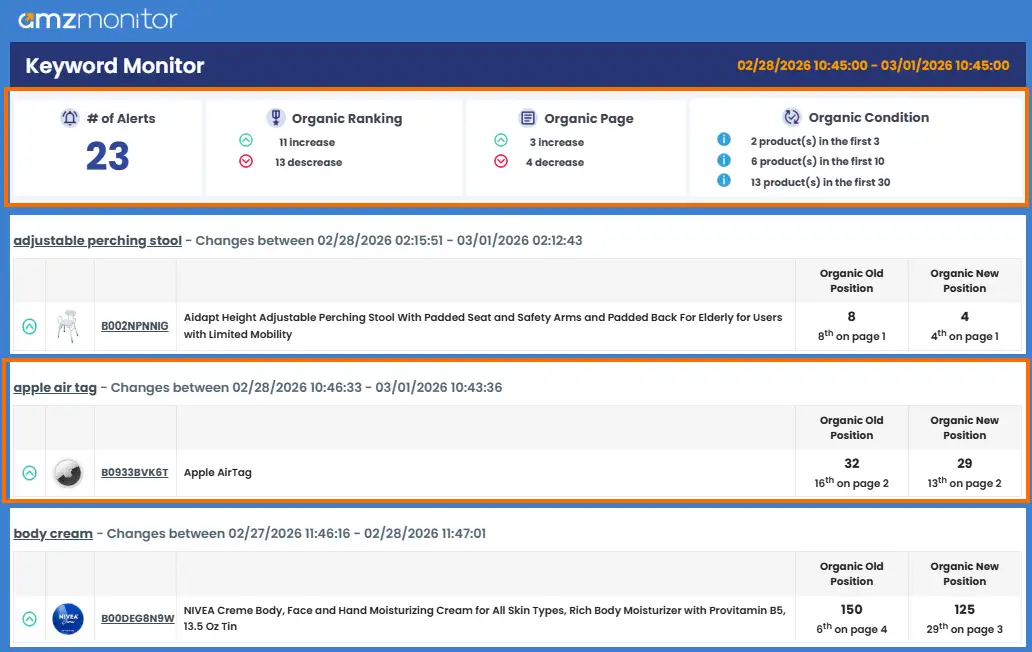
When email notifications are enabled for a keyword, AmzMonitor sends you a daily email summarizing all ranking changes detected for that day. The email opens with a summary section covering the total number of changes, how many rankings moved up or down, how many products shifted to a different page, and a breakdown of how many of your ASINs are currently ranking within the first 3, 10, and 30 pages of results. Below the summary, each affected keyword is listed individually with the previous and current ranking positions.
💡 Depending on the number of keywords you're tracking, these emails can get quite long. Some email clients may clip the message and only show a portion of it. If that happens, look for a "View entire message" link at the bottom of the email to see the full report.
-
Dashboard Notifications
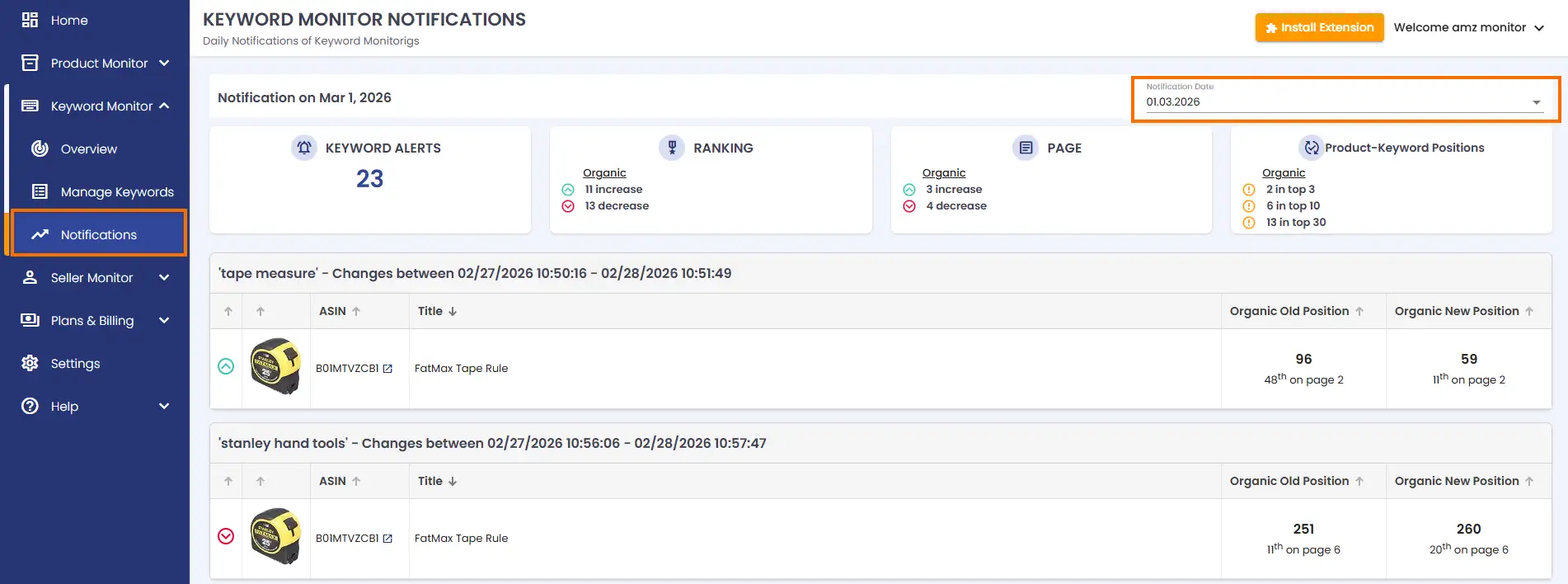
From your AmzMonitor dashboard, navigate to Keyword Monitor → Notifications in the main menu. Here you can select any date and view the full notification report for that day — the same data as the email, presented as a table. This gives you easy access to your complete ranking change history without having to dig through your inbox.
-
Recent Alerts for Monitored Keywords
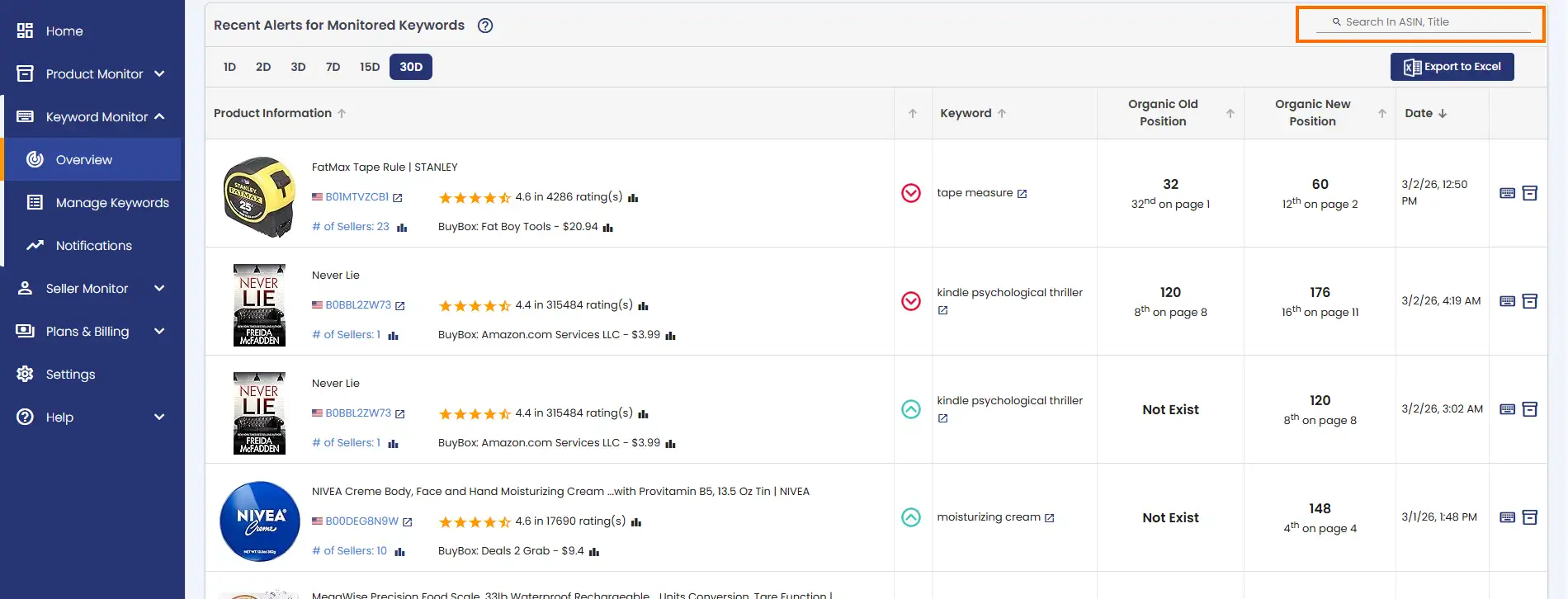
On your dashboard, navigate to Keyword Monitoring → Overview to find the Recent Alerts for Monitored Keywords table. This table gives you a record of all ranking changes detected across your monitored keywords, organized by product. You can search by ASIN to filter and focus on the ranking changes for a specific product. Every entry in this table represents a detected ranking change — making it a quick and reliable way to review what's shifted and when, without going through your emails. The table covers up to the last 30 days of alerts. For further analysis, you can also export the data as a CSV.