Manage a Single Keyword Monitoring
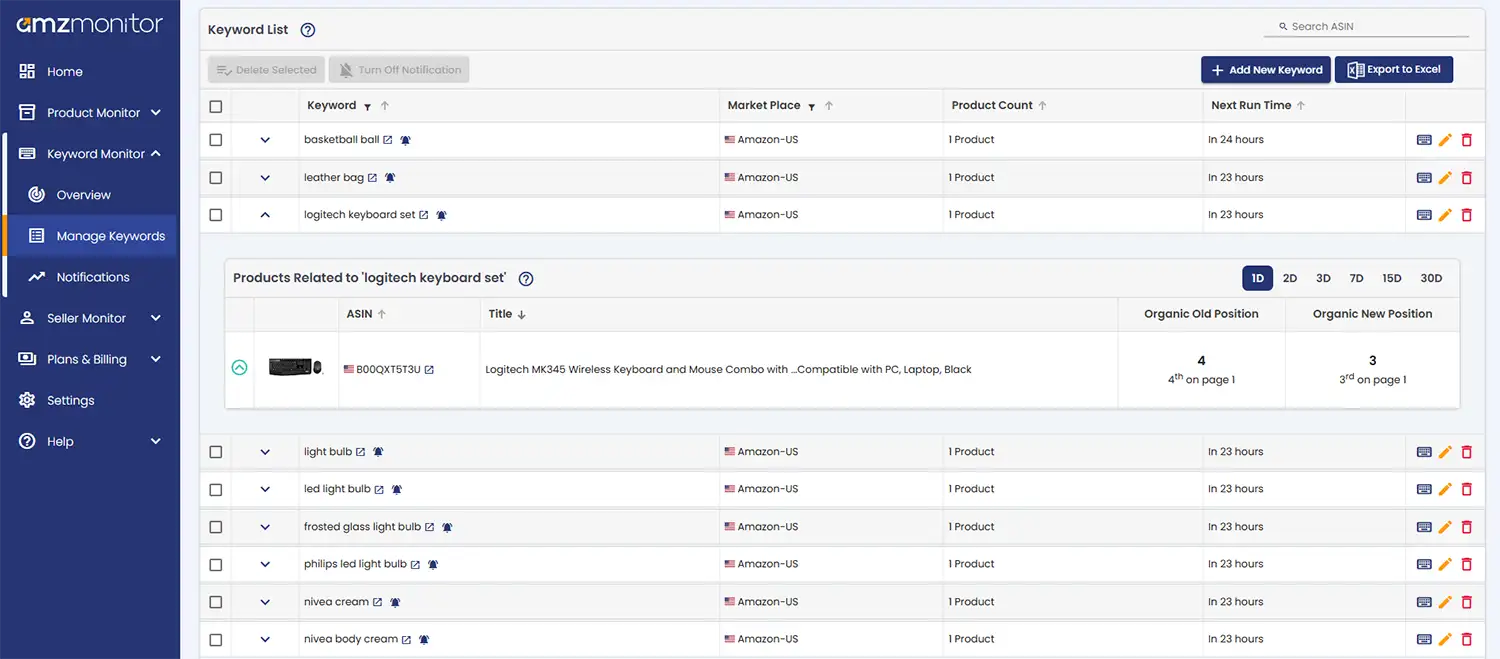
All keyword actions in AmzMonitor are managed directly from Keyword Monitoring → Manage Keywords. On this page, you’ll find the Keyword List table, where all your tracked keywords are displayed and controlled.
The table displays all keywords that you are actively monitoring. Each row represents a single keyword and shows the keyword itself, the selected marketplace, the number of associated ASINs, and the remaining time until the next scan.
The table is designed as an expandable structure: when you click on a row, it expands to reveal all ASINs linked to that keyword. From this same table, you can add new keywords, edit existing ones, or remove them — everything is managed in one centralized location.
The table is designed as an expandable structure: each row represents a single keyword, and when you click on a row, it expands to reveal all ASINs associated with that keyword. From this same table, you can add new keywords, edit existing ones, or remove them — everything is handled in one centralized location.
Add Single Keyword Monitoring
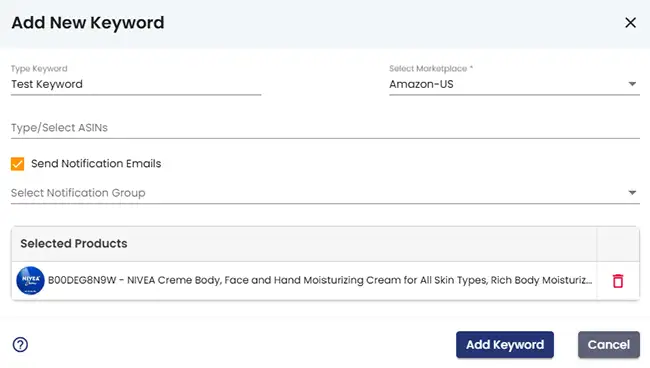
On the Manage Keywords page, click the Add New Keyword button located above the Keyword List table. This will open the Add Keyword pop-up window. In the pop-up, enter the keyword you would like to track. Keywords can include spaces and multiple words, but only one keyword can be added at a time. Next, select the relevant Amazon marketplace. Then choose the ASINs you want to associate with this keyword. The ASIN field supports autofill — when you start typing, the system will display your registered ASINs so you can quickly select them. You can link multiple ASINs to the same keyword in a single step.
All selected ASINs will be listed at the bottom of the pop-up. If needed, you can remove any unwanted ASINs before proceeding by clicking the  icon displayed next to each ASIN.
Before saving, you can decide whether keyword notifications should be enabled and optionally assign an email group to receive alerts.
Once you click Add Keyword, rank tracking will immediately begin for the selected ASINs under the specified keyword.
icon displayed next to each ASIN.
Before saving, you can decide whether keyword notifications should be enabled and optionally assign an email group to receive alerts.
Once you click Add Keyword, rank tracking will immediately begin for the selected ASINs under the specified keyword.
Editing a Keyword
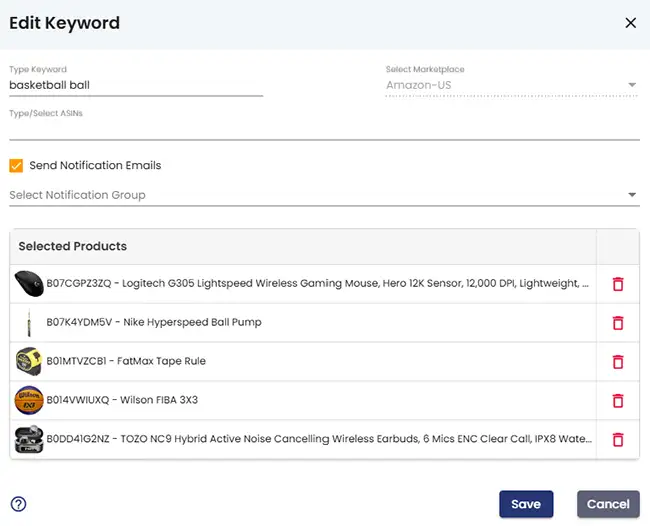
In the Keyword List table, each keyword has an  icon next to it. When you click this icon, the Edit Keyword pop-up window will open, allowing you to update the keyword settings. While the keyword text and selected marketplace cannot be changed after creation, you can modify the linked ASINs, adjust notification preferences, and update the assigned email group. After making your changes, click Save to apply them.
Deleting a Keyword
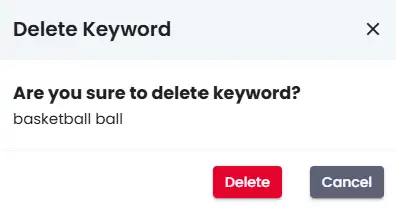
In the Keyword List table, each keyword has a icon next to it. To delete a keyword, click this icon and confirm the removal in the pop-up dialog. Once confirmed, the keyword will be removed.
Manage Keyword Monitorings in Bulk
AmzMonitor also supports bulk keyword management, so you can add, update, or
remove multiple keywords at once without going through them one by one. To get
started, go to Product Monitor → Manage Products from the left
sidebar. On the Manage Products page, click the  icon above
the product list to begin the bulk product process.
icon above
the product list to begin the bulk product process.
-
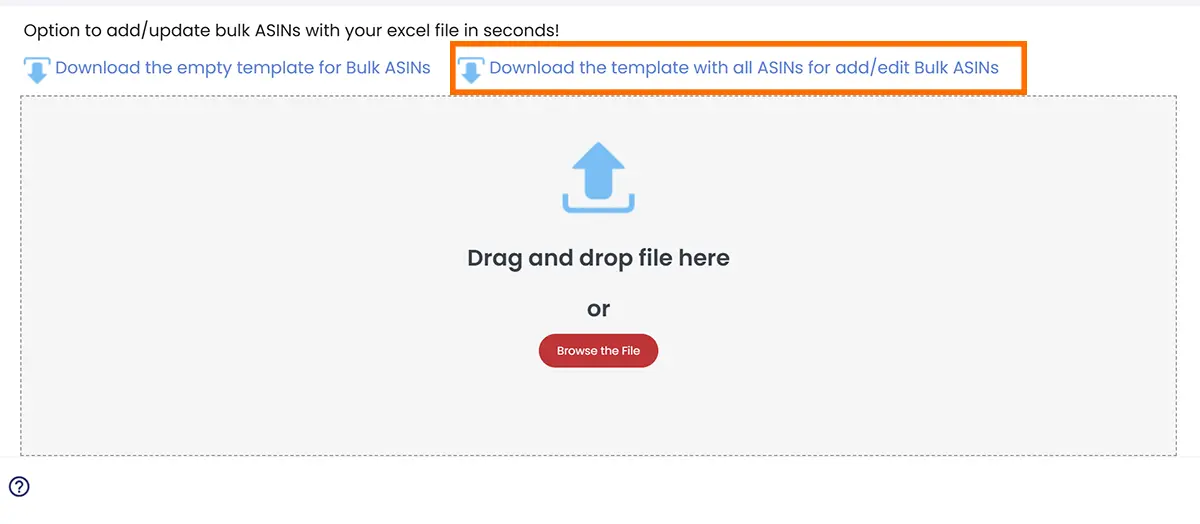
The popup includes a Download the template with all ASINs for add/edit Bulk ASINs option. Use this to export all your currently monitored products into an editable Excel file, so you can make bulk updates to your existing product list.
-
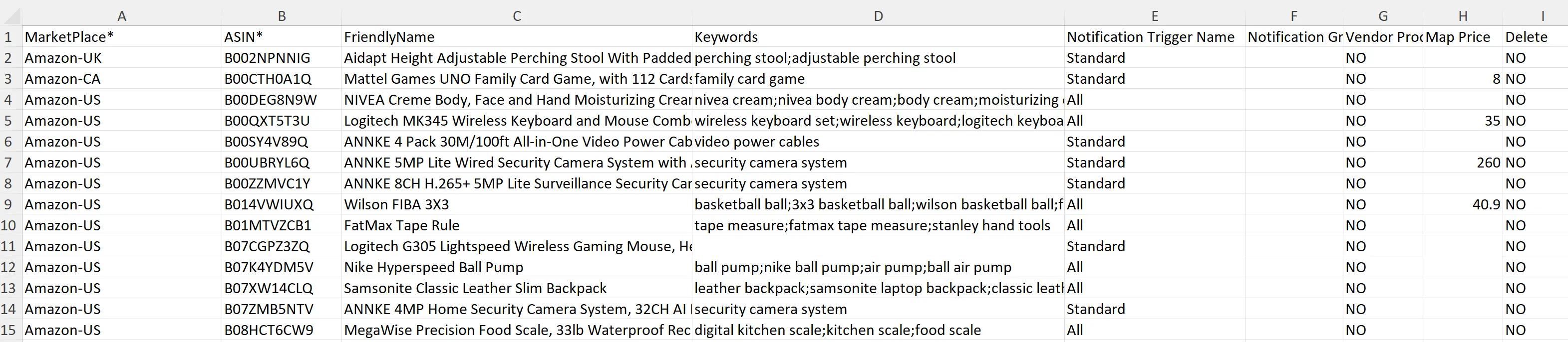
Open the downloaded AllProducts.xls file and make your changes directly in the sheet. Just like other product details, you can edit your keywords as well — you can add new keywords, update existing ones, or remove them as needed. When editing keywords, make sure each keyword contains at least 3 characters. You can add multiple keywords for a single ASIN, up to a maximum of 10 keywords per ASIN, and if you add more than one keyword, they must be separated using the “;” (semicolon) character.
-
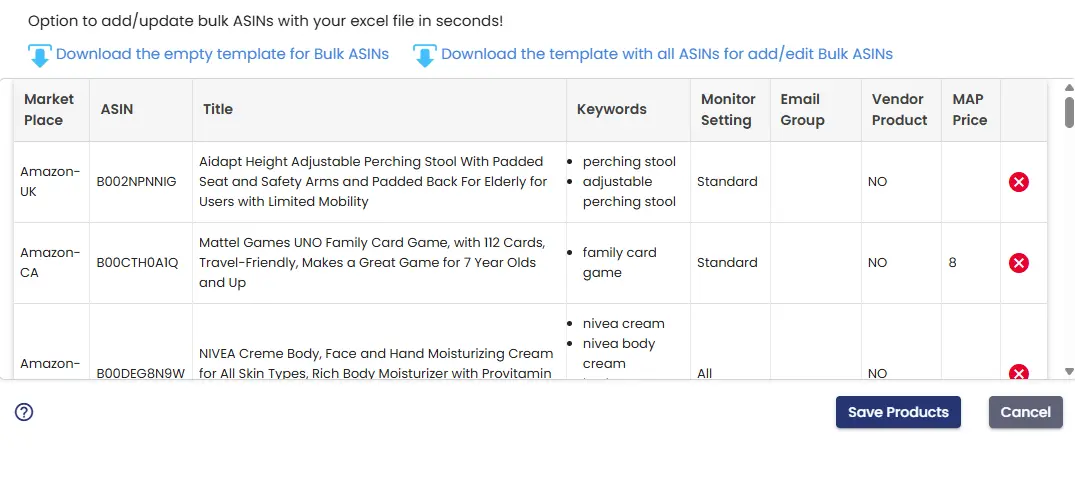
Once your file is ready, drag and drop it into the upload area on the popup — or click Select File to browse and upload it manually. AmzMonitor will analyze the file and display a summary of all the products you're about to import. If you spot any errors or want to exclude a product, click the
 icon on the right to remove it from the list. Once everything looks good, click Save Products to complete the import.
-
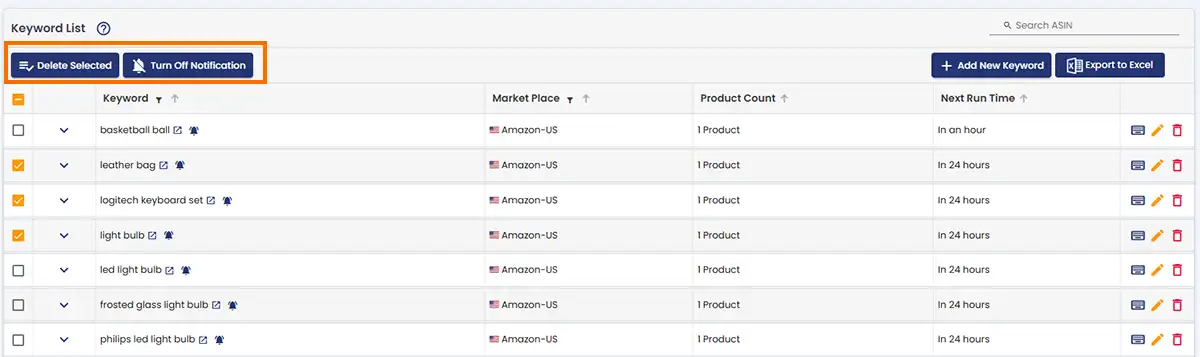
There's also a quicker way to delete or toggle notifications for multiple keywords at once. Simply check the checkboxes on the left side of the keyword list to select multiple keywords. Once selected, use the Delete or Notifications On/Off buttons that appear at the top of the list to apply your changes to all selected keywords at once.
Viewing Monitoring Details
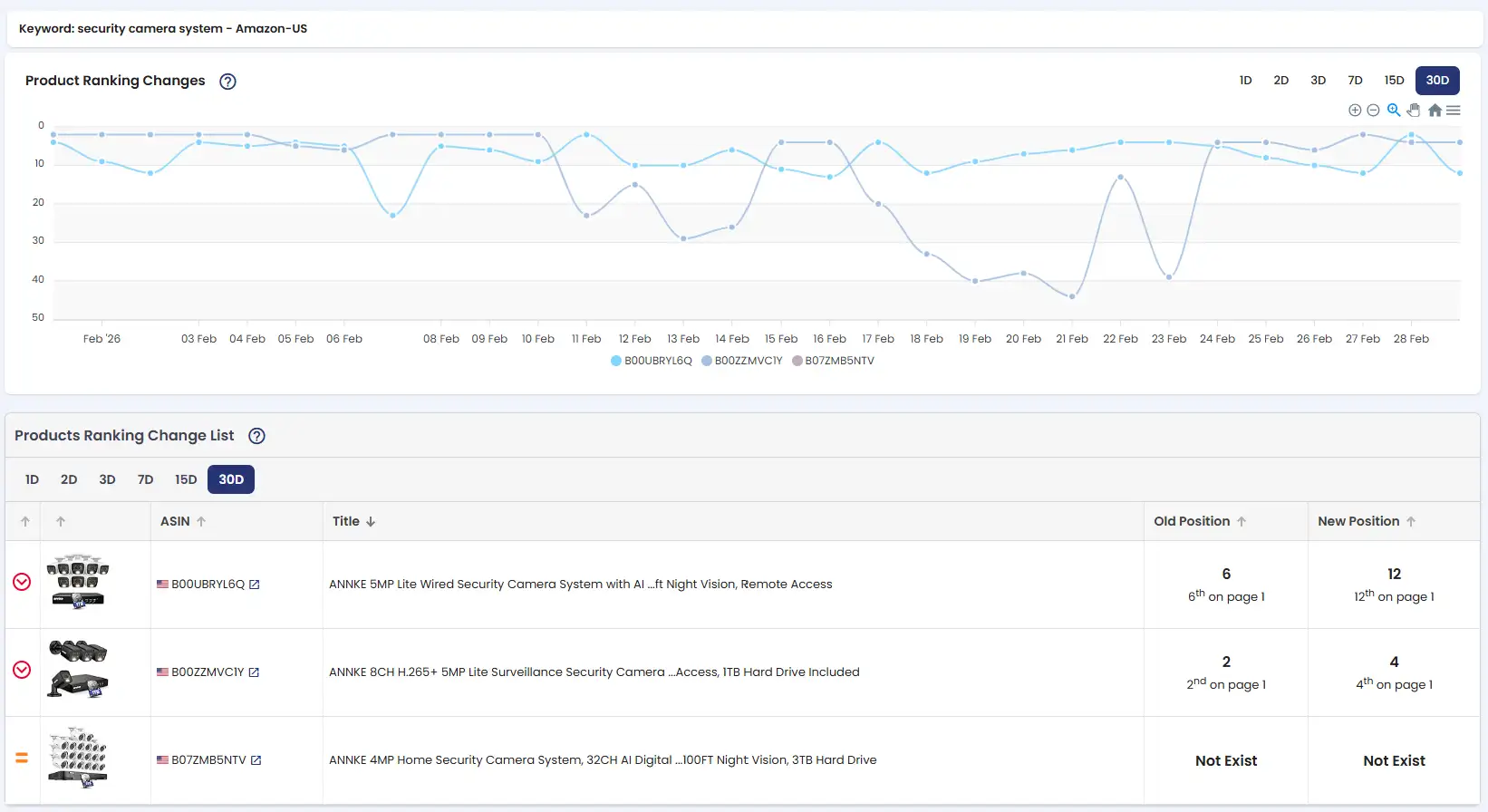
For a deeper look into a specific keyword's performance, click the  icon in the action column — available both in the Recent Alerts table and in the Manage Keywords table. This opens a dedicated detail page showing the full ranking history for that keyword as a line chart, giving you a clear view of how the ranking has moved over time. Below the chart, a table compares the ranking at the start and end of your selected time range — so you can quickly see how much a product's position has shifted over that period. If multiple ASINs are assigned to that keyword, both the chart and the table display data for all of them, making it easy to compare performance across products for the same search term.