What's New at a Glance
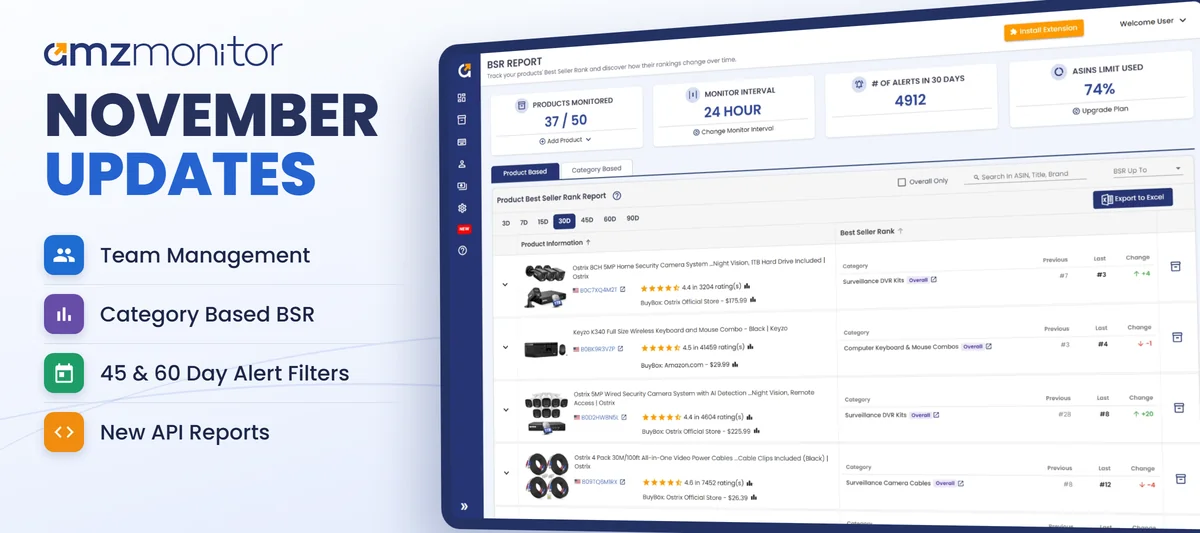
- Team Management: add team members who sign in with their own email address and work in your account.
- BSR Report: Product Based and Category Based views, overall BSR sorting, two-product comparison charts and links to Amazon's Top 100 Best Sellers lists.
- 45 and 60 day alert filters for Product, Keyword and Seller Monitoring.
- New API report endpoints for Buy Box, BSR, MAP and Customer Says Compare data.
- A redesigned amzmonitor.com.
Team Management: Separate Logins, One Account
Team Management lets you give people access to your AmzMonitor account without handing over your password. Each team member signs in with their own email address and works with the same products, keywords, sellers, reports and alerts that you see.
Team members can use every AmzMonitor feature for day to day work. Three things stay with the account owner: managing the subscription, changing monitoring intervals, and adding or removing team members. Billing and the settings that decide how often your listings are monitored remain the owner's decision, while everyone else can get on with the monitoring itself.
How to Add a Team Member
- Ask the person to create an AmzMonitor account if they don't have one yet. Only existing AmzMonitor users can be added.
- Open Team Management from the left menu and click Add Team Member.
- Enter their email address. They receive an email letting them know they have been added to your account.
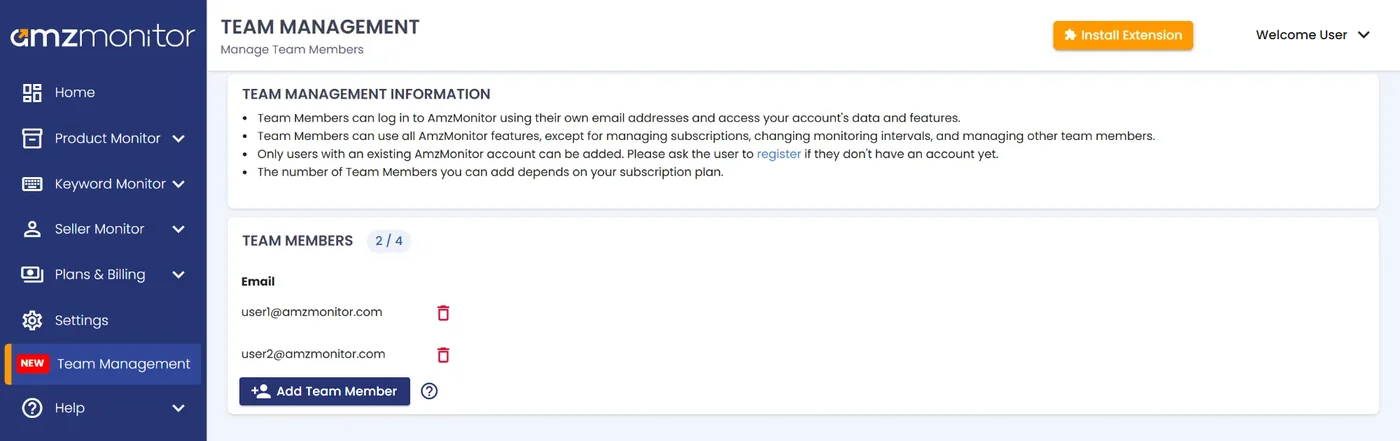
You can remove a team member at any time from the same page, and they are notified by email when you do. Their AmzMonitor login stays, but it no longer opens your account or its data. The full walkthrough is in the Team Management guide.
Team Member Limits by Plan
The number of team members you can add depends on your plan: 1 on Bronze, 2 on Silver, 4 on Gold, 6 on Platinum and 10 on Diamond. The Team Management page shows how many seats you are using next to your limit, and the current plan details are on our pricing page.
Things Worth Knowing Before You Invite Someone
- A user can belong to only one team at a time.
- A user with an active paid subscription of their own cannot be added. If the person is on a free trial, the trial ends when they join your team.
- Team members and notification email addresses are two different things. A notification email address only receives notification emails, while a team member signs in and works in the account.
That last point is a useful way to decide who goes where. A business partner who only wants to see price or Buy Box changes in their inbox needs a notification email address. A VA who reviews alerts, adds new ASINs and exports reports needs a team member seat.
If you currently share your password with a VA or a freelancer, moving them to a team member seat is the safer setup. When the engagement ends, you remove them in one click and your own password never has to change.
BSR Report: Product Based and Category Based Views
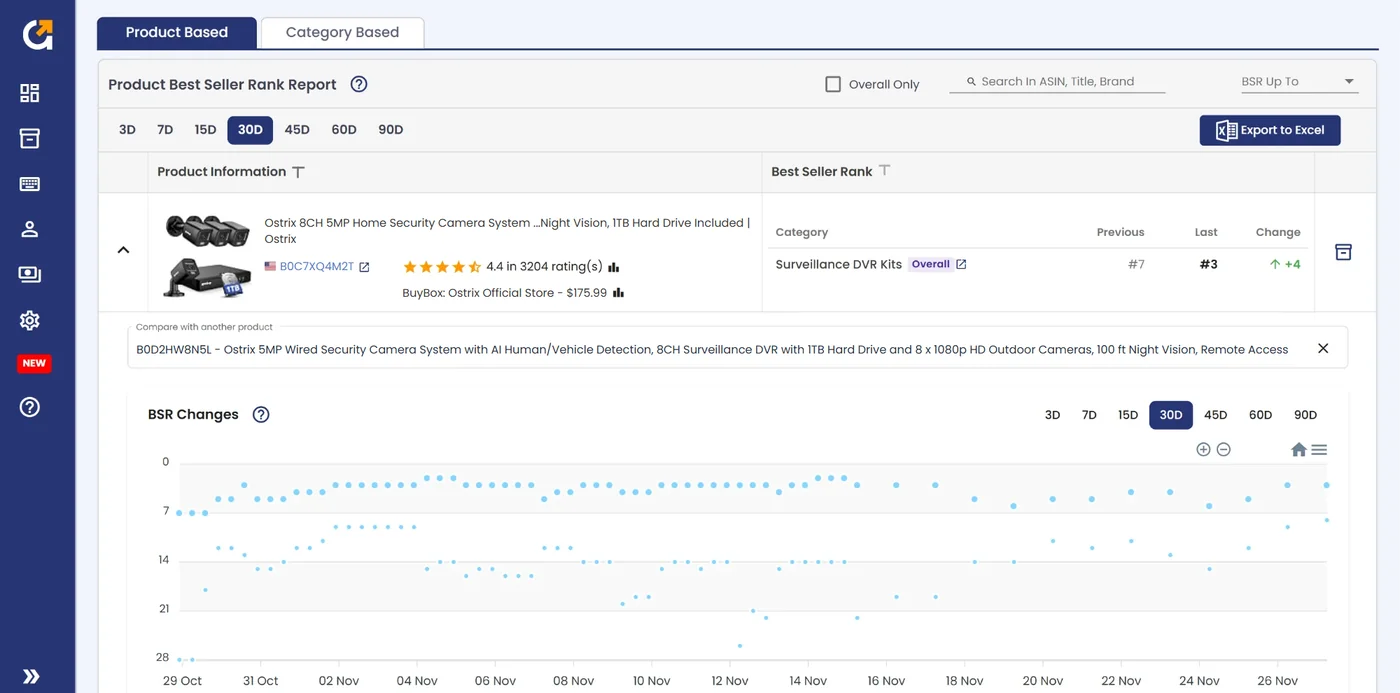
The BSR Report puts the Best Seller Rank of every product you monitor in one place. It has two views: Product Based lists each product with its current ranks and opens a rank history chart for any of them, while Category Based groups your products by category so you can see where your rankings are concentrated.
Product Based View
Products are sorted by their best overall BSR by default. That is the main category rank Amazon shows on the listing, not a subcategory rank, so the products at the top of the report are the ones selling best across their whole category. Overall ranks are labeled in the table, and the Overall Only option hides subcategory ranks when you only want the headline number.
Open a product's BSR chart and use Compare with another product to search by ASIN or title and add a second monitored product to the same chart. It is a quick way to see your listing against a competitor ASIN you monitor, or to check whether two of your own products moved together after a price change or a promotion.
Category Based View
Looking at products one by one, BSR tells you where each listing stands. It is much harder to spot the pattern when you monitor a couple of hundred ASINs spread across a dozen categories. The Category Based view groups your monitored products by category and shows how their current ranks are distributed across five ranges: 10 or better, 11 to 100, 101 to 1K, 1K to 10K, and above 10K.
By default, categories are sorted by how many of your products rank 100 or better. You can also sort by category name, product count or average BSR, or use the BSR Breakdown sort to order categories by the number of products in a range you pick. Expand any category to see the products behind the numbers, and export the whole report to Excel when you need it elsewhere.
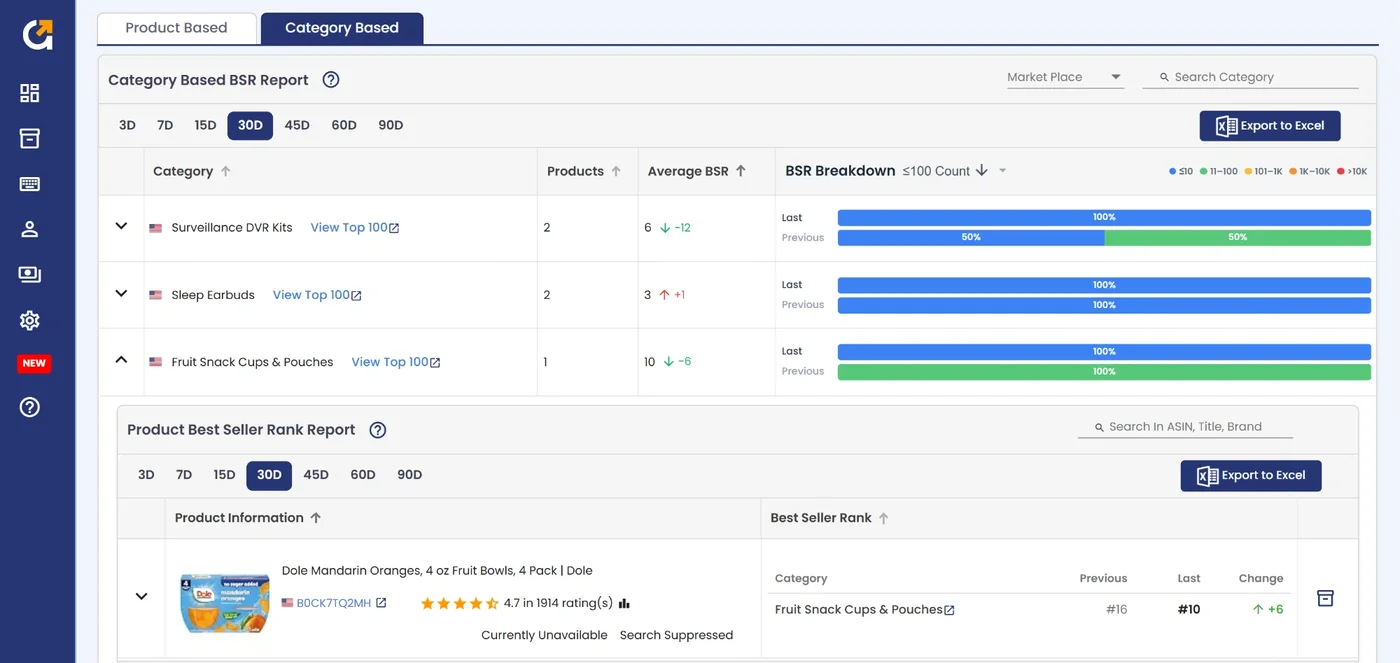
In practice, this view shows quickly which categories are carrying your rankings and which have slipped. A category with ten products and none inside the top 1,000 is a different problem from one where a single product sits at #40 and the rest trail far behind. The first often points to something category wide, such as pricing or new competition. The second tells you how much of that category depends on one listing.
Direct Links to Top 100 Best Sellers
Categories in both views include a View Top 100 link that opens Amazon's Best Sellers list for that category. When a rank drops, you can see who is currently ranking above you in one click instead of finding the category on Amazon yourself.
For a closer look at every filter and column, see the BSR Report section of our reports guide.
45 and 60 Day Alert Filters
Alert lists in Product, Keyword and Seller Monitoring used to go back a maximum of 30 days. You can now choose 45 or 60 days as well.
The longer window matters when something plays out over weeks rather than days. If you ran a promotion in early October and want to review every price, Buy Box and BSR change on that ASIN from before the promotion through the weeks after it, a 60 day view puts the whole period on one screen. The same goes for looking back at a competitor's catalog changes in Seller Monitoring to see whether they follow a pattern.
New Report Endpoints in the AmzMonitor API
If you pull AmzMonitor data into your own dashboards, spreadsheets or internal tools, the API now includes five more reports:
- Buy Box report
- Product Based BSR report
- Category Based BSR report
- MAP report
- Customer Says Compare report
They sit alongside the existing Review and Customer Says report endpoints and use the same authentication and response format. For agencies, this means Buy Box and BSR data can feed the same weekly client report without manual Excel exports. API access is included in the Diamond plan, and parameters for each endpoint are in the API documentation.
A Refreshed amzmonitor.com
We have also redesigned our website. Each feature now has its own page explaining what it monitors and how the data is shown, and there are dedicated pages for private label sellers, vendors, agencies and wholesale resellers. The FBA Calculator was rebuilt too, using Amazon's 2026 US fee rates. The app itself works exactly as before; the site simply makes it easier to understand a feature before you set it up.
Monitor your products, competitors and keywords
Get notified about price changes, bad reviews and hijackers. 14-day free trial, no credit card.