
Add Products and Sellers to Monitoring with the AmzMonitor Chrome Extension
Found a product or seller worth watching on Amazon? Add it to AmzMonitor from the page you're on, without copying ASINs or Merchant IDs.
- Works on Amazon pages
- No Seller Central access needed
Key Features
Monitor What You Find While You Browse
-
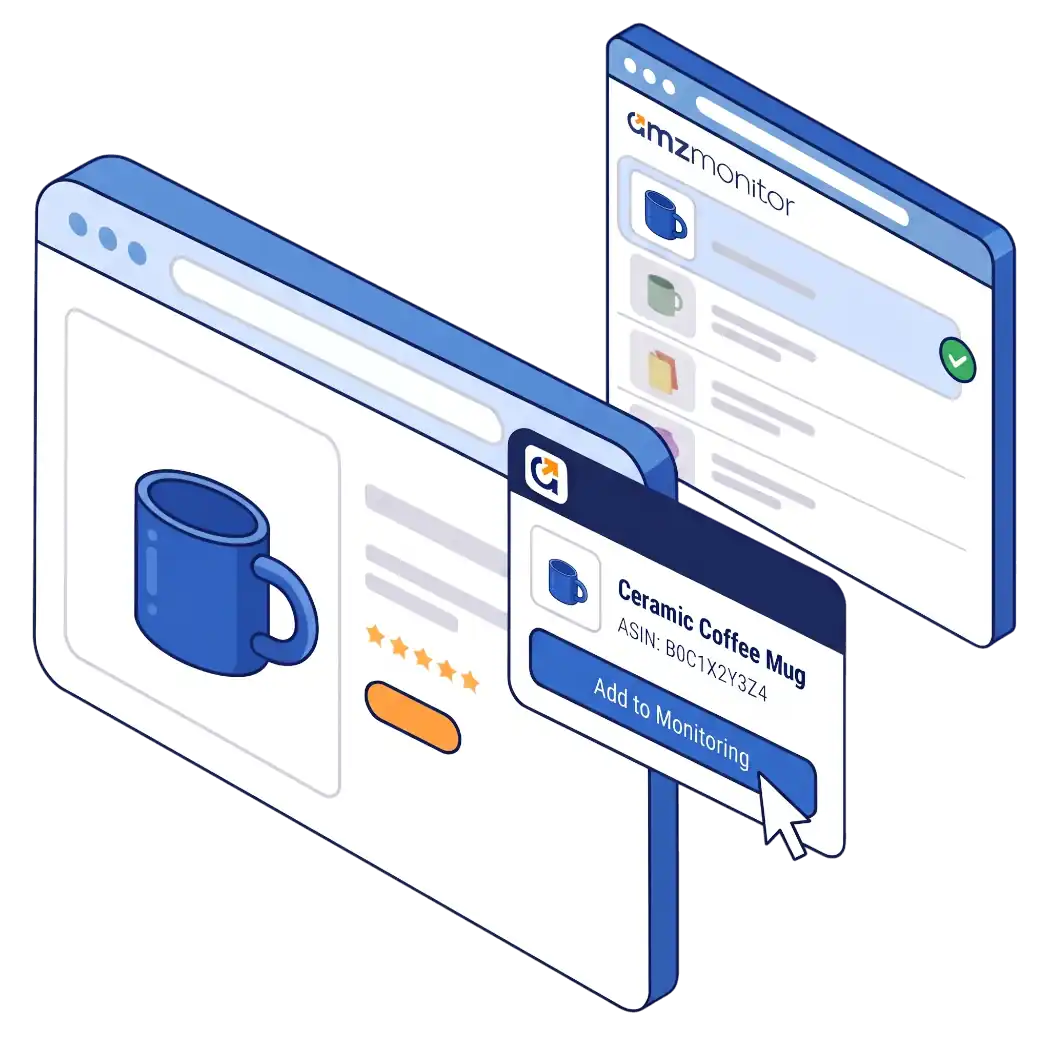
See the status at a glanceThe AmzMonitor button on Amazon pages changes color: blue when a product or seller isn't monitored yet, green when it is, and gray when you're not logged in.
-
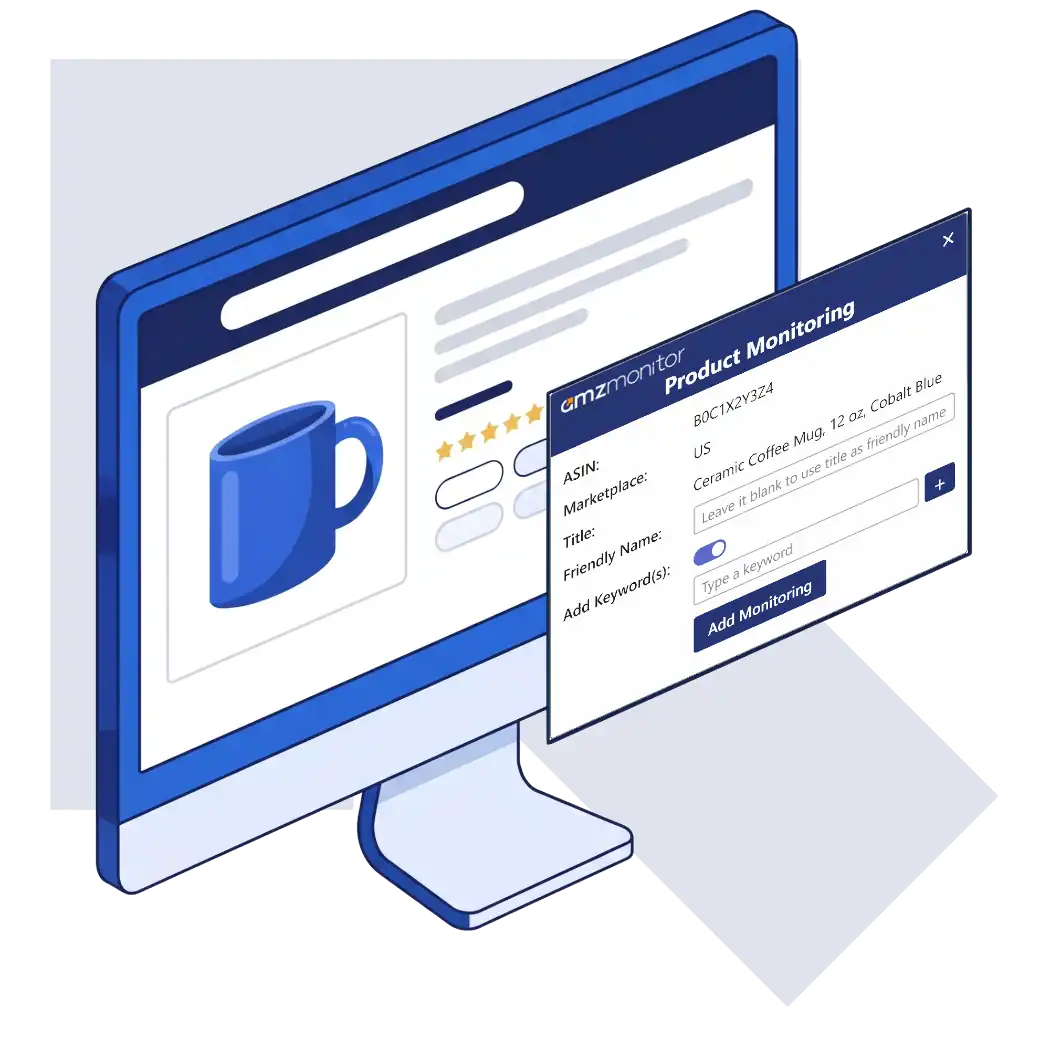
Add a product in one stepOn a product page, the extension picks up the ASIN, marketplace and title for you. Add a friendly name if you want one, then click Add Monitoring.
-
Add keywords at the same timeAdd up to 10 keywords per ASIN from the same window and start tracking their rankings.
-
Add a competitor's storefrontOn a seller page, the extension picks up the seller name, Merchant ID and marketplace. Focus on up to 10 brands, or follow the whole store.
Monitors and Plan
See What You Monitor and What Your Plan Has Left
Check your monitors and your plan usage without leaving Amazon.
-
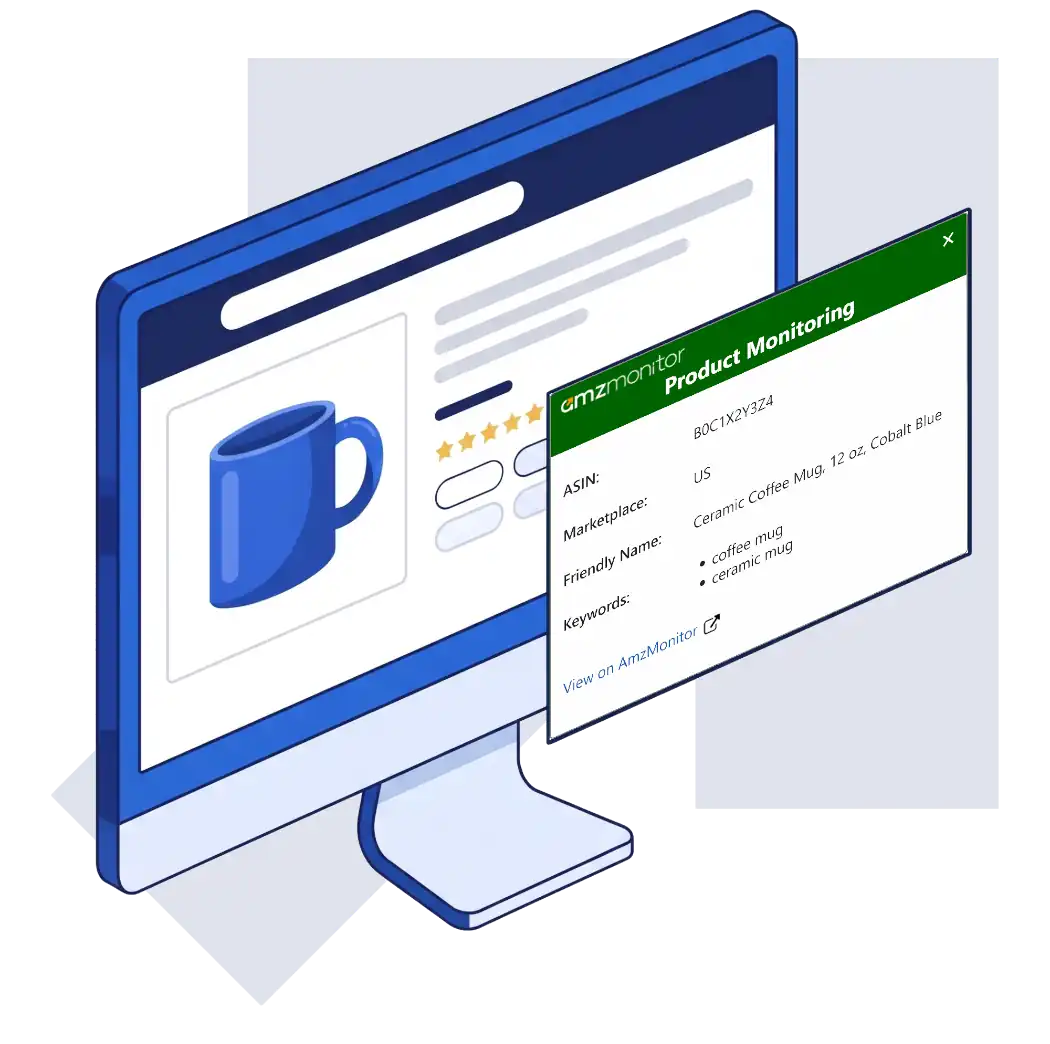
Already monitoring it?Open the button on a monitored product or seller to see its details, keywords or brands. Click View on AmzMonitor to go straight to it in your dashboard, where you can edit or remove it.
-
Your plan in one clickClick the extension icon in the toolbar to see your plan and how many ASINs, sellers and keywords you've used, with links to your settings, subscription and help pages.
How It Works
How to Start Using the Extension
Four steps from installing the extension to your first monitor. Read the full Chrome extension setup guide
-
01
Add the extension
Install it from the AmzMonitor page on the Chrome Web Store.
-
02
Log in to AmzMonitor
The extension uses your AmzMonitor login, so there's no separate account.
-
03
Open Amazon
Go to a product or seller page and click the AmzMonitor button.
-
04
Add monitoring
You get a browser notification when it's added, and alerts follow your account settings.
AmzMonitor Chrome Extension FAQ
It adds Amazon products and sellers to your AmzMonitor monitoring from the Amazon page you're on.
No. You see that data and your alerts in your AmzMonitor dashboard.
Yes. You need an account with an active plan or trial.
No. You can add any product or seller you can see on Amazon, including your competitors.
Sellers added from the extension are tracked with All Products, up to 1,500 products.
No. Use View on AmzMonitor and make changes in your dashboard.
Start Monitoring from Your Next Amazon Page
14-day free trial. No credit card required.